
TealLock User's Manual
Program
Version 7.15
Last
Updated: May 22, 2009
Table of Contents
Chapter 1 – Introduction
Overview
Contents
Chapter 2 – Installing
Installing to one handheld
Installing to multiple handhelds (Site License)
Upgrading from older versions
Backing up your data
Chapter 3 – Overview
PalmOS Standard Security
TealLock Enhanced Security
TealLock Versions (comparison chart)
TealLock Lite Edition
TealLock Standard Edition
TealLock Corporate Edition
TealLock Enterprise Edition
QuickLock
Chapter 4 – Getting
Started
TealLock Status
Setting a User Password
Setting a Quick Password
Changing Private Records
Locking the Handheld
Changing Settings
Chapter 5 – Activation
Settings
Activation Options
Automatic Hide/Mask
Automatic Locking
Locking Options
Unlocking Options
Chapter 6 – Display
Settings
Lock Screen Placement
Background Image
Launcher Buttons
Lock Screen Call
Lock Screen Colors
Lock Screen Keypad
Lock Screen Text
Lock Screen Window
Other Controls
Chapter 7 – Input
Settings
Password Entry
Button Shortcuts
Graffiti Shortcuts
Keyboard Shortcuts
Screen Shortcuts
Chapter 8 – Passwords
Settings
Admin Password
Guest Password
Quick Password
User Password
Password Controls
Password Expiration
Password Options
Password Permissions
Chapter 9 – Security
Settings
Apps – Alarms
Apps – Allowed
Apps – Excluded
Apps – Protected
Encryption – Card
Encryption – Files
Encryption – Apps
Encryption Options
Files – Protected
Self Destruct Mode
Chapter 10 – Other
Settings
History Log
Remote Locking
Remote Unlocking
Remote Self Destruct
Make Fallback File
Make Install File
Make Policy File
Make Uninstall File
Special Options
Tips and Hints
Chapter
11 – Enabling PalmOS Phones
Allowing Timed
Activation
Receiving Incoming
Calls
Dialing Outgoing
Calls
Treo600 / Treo650
Operation
Chapter 12 –
Restricted Use Mode
Setting up Locking
Screen
Setting up Password
Setting up
Applications
Appendix A – Usage
Tips
Setting a Password
Emergency Password
Receiving calls with your Treo or Kyocera Smartphone
Welcome Screen
System Lockout Screen
Appendix B – HIPAA
Compliance with TealLock
Background
TealLock HIPAA compliance features
Appendix C – Security
Whitepaper
Appendix D –
Compatibility
Installation and launching
Password entry
PalmOS Phone Support
Compatibility
Alarms
Encryption
Flash Memory
Site Licenses
Appendix E – Products
Appendix F – Revision
History
Appendix G – Contact
Info
Appendix H –
Registering Individual Copies
Appendix I – Site
Licenses
Appendix J – Legal
Notice
Chapter 1 – Introduction

Overview
Thank you for trying TealLock. This program password protects your handheld device, insuring the security of your personal and company data.
This manual supports the following versions of TealLock:
·
TealLock Lite Edition
·
TealLock Standard Edition
·
TealLock Corporate Edition
·
TealLock Enterprise Edition
Contents
This
archive contains the following files:
Program files:
TEALLOCK.PRC The
TealLock program file
QUIKLOCK.PRC Optional
“quick-lock” stub launcher icon
TPSETUP.EXE Easy-installer
program (Windows)
BG_CASH.JPG.PDB Sample
background image in Palm Public Jpeg format
BG_GOLF.JPG.PDB Sample
background image in Palm Public Jpeg format
BG_SNOW.JPG.PDB Sample background
image in Palm Public Jpeg format
BG_STAR.JPG.PDB Sample
background image in Palm Public Jpeg format
BG_TREE.JPG.PDB Sample
background image in Palm Public Jpeg format
Document files:
LOCKDOC.PDF Program manual in
Adobe Acrobat (PDF) format
LOCKDOC.HTM Program manual in
HTML format (sans images)
LOCKDOC.PRC Program manual in
TealDoc format
REGISTER.HTM TealPoint
Registration form in HTML format
REGISTER.TXT TealPoint
Registration form in text format
Chapter 2 – Installing
Installing to one handheld
Windows:
Double-click
on TPSETUP.EXE to install the necessary files.
All Operating Systems:
You may also use the Palm
Installer to install TealLock. After
installing the program file, TEALLOCK.PRC,
the program will appear on your device after the next HotSync. You may also want to install the optional
background images and LOCKDOC.PRC, the
TealLock manual as a Palm OS document.
The latter can be read with our application TealDoc and similar document
readers.

The PalmOS Installer (sometimes named “quick
install”) appears as in icon in the Palm Desktop program on your desktop
computer. Instructions on how to use the Palm installer should come in the
documentation that comes with your handheld.
Installing
to multiple handhelds (Site License)
When licensing TealLock Corporate Edition or TealLock Enterprise Edition, a custom .PRC file will be delivered upon completion of a Site License Agreement. Use the Palm Installer to install this file onto a single administrator handheld.
After configuring the desired security settings and
Administrator Password on the initial device, follow the instructions in the
Installation File section of this manual to transfer those settings to all
other handhelds covered in the site license.
Upgrading from older versions
When
upgrading TealLock from older versions of the program, you may safely HotSync
the new version over the old, but you must
turn off the previous version before HotSyncing the new one. If you don’t, HotSync will not be able to
copy the new version over. If
significant features have been added in the new version, you may need to
re-enter your password, settings and registration information.
Backing
up your data
Due
to the security nature of this program, you are strongly advised to back up
your organizer with a HotSync or other means before activating TealLock and
setting a password. If you forget your password or run a downloaded application
that interferes with TealLock, you may not be able to regain control of your
handheld without performing a hard reset and erasing all its data.
Chapter 3 – Overview

Every year, some 20,000 handheld
organizers are lost or stolen, many loaded with sensitive private or personal
information. Most of these units have
no protection against unauthorized use.
TealLock fills this need by automatically locking a PalmOS handheld,
hiding private records according to customized settings, encrypting sensitive
data in memory or external storage cards, and requiring a password for
continued use.
PalmOS
Standard Security
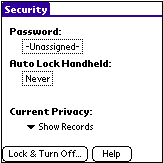
Most
PalmOS handhelds come equipped basic security features such as a system
password, private record support, and a system-locking screen.
However,
the default system is cumbersome, as one usually has to manually start the
system security application to change the state of hidden records or to lock
the device. Furthermore, its interface
is inflexible; it features few activation, or customization options, and it
supports no administrator features to make it suitable for deployment in a
multi-user corporate environment.
In
addition, the default system is largely insecure, including no encryption
features to prevent unauthorized access to sensitive data. Even worse, the standard security features
are often too clumsy to use, so they go ignored, leaving most handhelds with no
security whatsoever.
TealLock
Enhanced Security
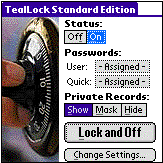
TealLock
replaces the standard security application.
It offers greater flexibility in order to meet individual and corporate
security needs. TealLock supports:
·
128-bit
hashed passwords
·
encryption
of files in both memory and external cards
·
password
entry by hardware buttons or screen keypads
·
customized
locking screens with text and images
·
shortcut
activation by graffiti, screen swipes, or buttons
·
automatic
timed lockout with numerous options
·
administrator
password with adjustable user access privileges
·
self
destruct mode to deter password guessing
·
detailed
history log for access audit
·
remote
unlock and self destruct by SMS message
·
and
much more…
TealLock
Versions (comparison chart)
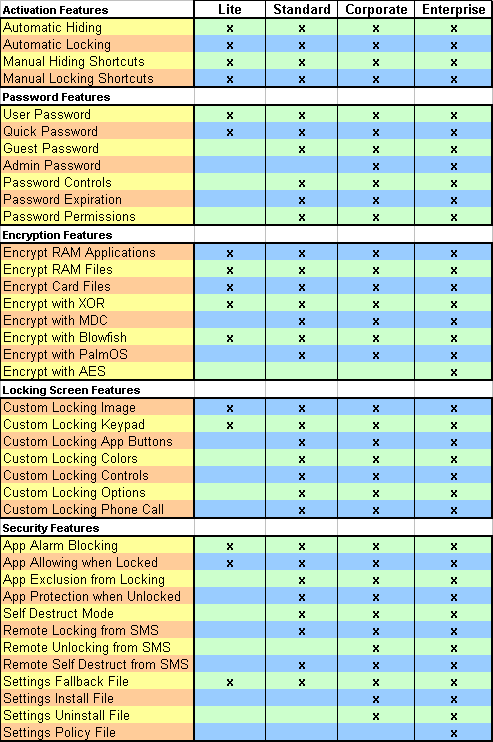
TealLock
is available in four different versions for consumer and corporate use:
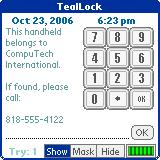
TealLock
is so powerful that it has been adopted by Palm itself, appearing in ROM on
select Palm handhelds such as the Tungsten T2 and Tungsten C. TealLock incorporates all the features
present in this enhanced TealLock
Security application, with additional customizations and encryption options
available nowhere else.
TealLock Lite Edition
TealLock
Lite Edition
features a streamlined interface designed for ease of use. It supports the most used security and
customization options, but removes options that may be confusing or require
advanced system knowledge to properly configure. It is recommended for novice to average customers wishing to
upgrade their device security.
TealLock
Standard Edition
TealLock
Standard Edition
is a security solution for more advanced users. It supports powerful features and configuration abilities not
available in TealLock Lite Edition.
TealLock
Corporate Edition
TealLock
Corporate Edition
expands on TealLock Standard Edition, providing features especially
useful in a corporate environment, including a separate administrator
password. The administrator password
allows a company’s IT department to access a handheld or issue a time-sensitive
emergency password should an employee forget his or her password. More importantly, when an administrator
password is active, the user is required to continue using the program; an
employee cannot turn off or delete TealLock, and may only change selected
configuration settings. The
administrator can also:
·
unlock
employee devices, using a time-sensitive temporary password
·
set a
minimum length for user passwords
·
require
use of both numbers and letters in user passwords
·
require
both upper and lower case letters in passwords
·
lock
out the User Password after too many failed attempts (bit wipe)
·
install
identical settings on multiple devices using an install file
·
update
settings using a combination of install and uninstall files
TealLock
Enterprise Edition
For maximum security, TealLock Enterprise Edition adds
features that make ideally suitable for
use in large organizations demanding top-notch protection:
·
Adds
128-bit AES encryption.
·
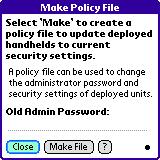
Adds
support for a Settings Policy File that can upgrade security policy on
employee handhelds in a single step. A Policy File lets existing users
keep their User Passwords, and eases deployment of new settings to many
employees.
With its full set of features, TealLock Enterprise Edition is an
ideal component in a health care organization’s HIPAA compliance program. See the Appendix in this document: “Using
TealLock in a HIPAA Compliance Program” for more information.
QuickLock

Included in the TealLock zip file
is QuickLock, an optional launcher icon you can run to lock your
handheld. QuickLock appears as a
separate app with the name “QL”.
When started, QuickLock simply looks for the TealLock application
and calls it to lock the handheld. Use
TealLock to add “Lock Immediately” functionality to third party popup launchers
button mapping programs, and any other applications that can run specified
apps.
QuickLock also appears as a nondescript icon on the launcher
(called “QL”), so if someone unfamiliar with TealLock starts snooping around
your device, they will likely lock the handheld unwittingly when they try to
open QuickLock.
Chapter 4 – Getting Started

Once
installed, start TealLock by tapping on the TealLock icon in the Palm
applications launcher screen. The TealLock Main Screen will
appear. Here you can set a password,
show or hide private records, or turn on or off TealLock protection.
TealLock Status
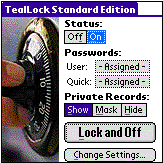
The TealLock Status indicator shows whether TealLock has been activated. Activation is necessary before TealLock can respond to shortcut macros or automatically lock or hide private records.
Select the ON box to activate TealLock protection.
If a User Password or Admin Password has been set, it will be requested before TealLock can be enabled, and will be needed again before TealLock can be turned back off. An Admin Password is only supported in TealLock Corporate Edition and TealLock Enterprise Edition.
NOTE: Some
versions of the standard Security App support basic automatic locking
features. Do not use any of
these automatic features when TealLock is running. To avoid conflicts, use TealLock automatic locking instead.
Setting a User Password
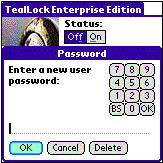
The
User Password indicator on the main screen shows if a User
Password has been set.
Tap on the User box to set a User Password.
Choose a password you can remember, but not one that can be easily guessed. You’ll be asked to enter it twice to make sure you haven’t made a mistake.
TealLock maintains its own User Password, which is independent from the system password set in the standard Security app.
NOTE: A standard Security
password is needed to keep PalmOS itself secure, so you should not leave the
standard Security password blank even if one has already been set inside
TealLock. We recommend making the two
passwords the same to avoid confusion.
Do this automatically by enabling the Sync User Password to System
option, which changes the system password whenever the user password is entered
in TealLock. This options is turned on
by default.
Setting a Quick Password
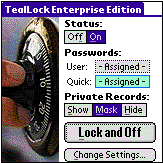
The Quick Password is similar to the User Password, but is only accepted if entered correctly on the first try.
Tap on the Quick box to set a Quick Password. You will be asked to enter your User Password first.
The Quick Password is usually shorter than the User Password, and is often made up of key-mapped characters so it can be entered quickly (See Password Entry settings).
A Quick Password is recognized as soon as it has been entered; selecting “OK” is unnecessary. You cannot make any mistakes in the process, however, and may have a limited amount of time to enter it, depending on the Quick Password settings. If you make an error while entering a Quick Password, you have to stop and use your User Password instead.
NOTE: A user can normally set a Quick Password on the TealLock Main Screen. In TealLock Corporate Edition and TealLock Enterprise Edition, however, this ability can be disabled in User Password Settings if the administrator considers it a security risk.
Changing Private Records
Palm OS supports a global private
record state that used by applications to hide or show sensitive files,
entries, or data records. TealLock can
manipulate this state, either automatically or under manual control.
The Private Records indicator displays the current private
records state:
·
Shown
·
Masked
·
Hidden
Select a button to change
the current setting. If a password has
been set, you will be asked to enter it in order to show private records that
have previously been hidden. While this
is an inconvenient way of changing private records, the coming chapters will
cover how to set up TealLock to automatically change them or allow you to set
them manually from a pen, keyboard, or button shortcut.
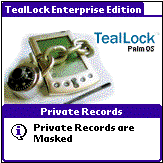
NOTE: TealLock changes the system
global private record state, but does not modify any application data
itself.
Under the PalmOS private record system, it is up to individual applications to actually read the current private record state and hide or mask private records and files accordingly. Some applications may hide private records instead of showing them, while others do not support private records at all.
Locking the Handheld
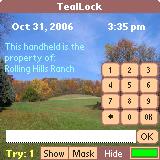
The Lock and Off button on the main
screen lets you quickly secure the handheld from within TealLock.
Tap on Lock and Off to lock the handheld.
You can also lock the handheld
either automatically or using a Graffiti-, screen-, keyboard-, or button
shortcut from inside another program.
Configure these options from within the program Change Settings
screens, described below.
Changing Settings
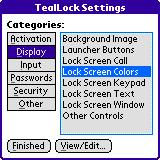
TealLock
settings are organized into six functional categories, described in the
following chapters.
Select Change Settings
to visit the TealLock settings screen.
If you’ve selected a password, you’ll be asked to enter it to continue.
When a User Password or Admin
Password has been set, it will be required to see all settings on the
settings screen.
If another password is entered,
such as a Guest Password, Quick Password, or User Password (when an Admin
Password is active), then the number of settings available will depend on
password permissions. If none are
available, the password will not be accepted.
Chapter 5 – Activation Settings
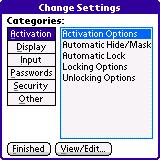
The
Activation Settings screens adjust when and how TealLock engages
to automatically lock the device or change private records. There are five activation settings screens:
- Activation Options
- Automatic Hide/Mask
- Automatic Lock
- Locking Options
- Unlocking Options
Activation Options
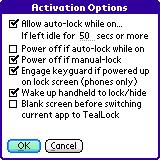
Autolock options let you fine tune how TealLock
behaves when autolocking takes place.
Allow auto-lock while on if inactive xxx secs
The handheld will auto-lock while the device is on only if it has been idle longer than the specified amount of time. If unchecked, auto-locking will only occur when the handheld is allowed to power off.
Power off if auto-lock while on
When this option is checked, the handheld will turn off if automatic locking kicks in while the handheld is on. This can occur from the Lock after password entry, Lock after activity or Lock at time options.
Power off if manual-lock
When this option is checked, the handheld turns off after being manually locked from a manual shortcut or main screen lock button.
Engage keyguard if powered up on lock screen (phones only)
When this option is enabled on a Treo/Centro smartphone, the system keyguard is enabled whenever the device is turned on while in the TealLock lock screen.
(New in 7.00)
Wake up handheld to lock/hide
Time-dependent automatic locking conditions—such as Lock after elapsed minutes or Lock daily at time—may require TealLock to lock the handheld while it is still off. When the Wake up to lock option is checked, TealLock uses a system timer to briefly wake the handheld and lock the unit. This insures that the handheld is already locked and records have been encrypted by the time the handheld is manually awoken later.
If this option is unchecked, TealLock will instead check the elapsed time after waking up. This can be slightly less secure, as the handheld will not be locked until after power up. Because of this, it’s not generally advisable to turn off this option unless a specific application conflict or other issue necessitates it.
Blank screen before switching current app to TealLock
When TealLock automatically hides
private records or locks the device, a flash of the previous screen might be
seen during the transition. With this
option enabled, TealLock erases the current screen upon power off, and only
redraws on power up if an automatic lock or hide condition is not satisfied.
TIP: Some applications automatically redraw themselves upon power-up and thus will not be affected by this option. If you encounter unexpected blank screens or other conflicts, disable screen blanking.
Automatic Hide/Mask
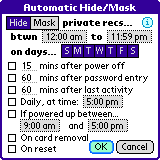
Use
the Automatic Hide/Mask screen
to set when private records are automatically hidden or masked. The following options are available:
Enabled between specified hours
Specifies a time range when automatic activation is active. This option does not by itself hide private records. Instead, it just specifies times when the other automatic options are applicable.
TIP: Setting the first time earlier than the second time (e.g. 8:00 am to 6:00 pm) will enable automatic activation for the times in between. Setting the first time later than the second time, however, (e.g. 6:00 pm to 8:00 am) will enable automatic activation to all times before the first time or after the second time on any given day. The times are inclusive, setting both times to the same value will DISABLE automatic activation at all times. Set them to 12:00am – 11:59pm to enable them at all times.
Enabled on specified days
Sets the days of the week when activation options are active. On the days that are not highlighted, automatic activation will not occur until the next valid day.
Minutes after power off
Activates a specified number of minutes after turning off the handheld. Set to “0” to activate immediately on power off.
Minutes after password entry
Activates a specified number of minutes after the last valid password entry. When using this setting, your password acts “logged on” for only the specified period of time before it needs to be re-entered.
NOTE: The unit must either be powered down or idle for one minute before actual hiding or locking takes place, as the program will not forcibly take control on the unit while it is still being used.
Minutes after last activity
Activates a specified number of minutes after the last user pen tap, button press, keyboard character entry, or other user activity.
NOTE: The unit must either be powered down or idle for one minute before actual hiding or locking takes place, as the program will not forcibly take control on the unit while it is still being used.
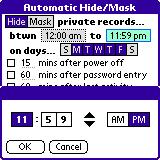
Daily, at time
Activates at a specified time of day.
If powered up between specified hours
Activates if the handheld is powered up during specified hours.
On card removal
Activates if an SD/MMC card is removed.
On reset
Activates if the unit is reset either by a system crash, by software control, or by the pinhole reset button in the back of the handheld.
NOTE:
If the
handheld is locked or if “protected” apps have been selected, the standard
Security application will pop up first after a soft reset. This is the normal system behavior that is
hard coded in PalmOS.
Automatic Locking
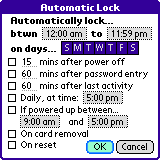
Use
the Automatic Locking screen
to set the same options described above, but for automatic locking.
Locking Options
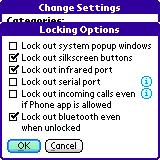
Use
the Locking Options screen to
adjusting how TealLock locks the device or what items are secured when locking
does occur.
Lock out system popup windows
When this option is checked, TealLock calls a PalmOS system function that blocks most system popup windows, such as those used to respond to network or wireless events. Uncheck this option to allow system pop-ups if required for a particular need. The usefulness and functionality of this option will vary from device to device depending on third party add-ons and system software.
Lock out silkscreen buttons
If checked, this option blocks pen taps on the silkscreen buttons surrounding the Graffiti writing area of handhelds with Graffiti support.
Lock out Infrared port
When checked, this option opens up
the PalmOS infrared library upon locking to prevent files from being beamed to
the device. Uncheck option you
encounter error messages due to another IR-based application or non-existent IR
port.
Lock out serial port
When checked, this option opens up the serial port upon locking. This can prevent the unlikely scenario of someone using the Palm OS serial debugger or other program to access data on the unit, and is primarily useful when running PalmOS 3 devices. Handhelds running PalmOS 4 or later already do not allow the serial debugger to run when the system is locked.
NOTE: This option is intended for older devices that have an external serial port connection. It is not needed on newer handhelds and phones that only support USB. In fact, some phones have modem hardware attached to internal serial ports. Do not use this option in this case or with devices that have external serial modems, as this can cause the modem to turn on when the device is locked and draw more power.
Lock out incoming calls
When this option is checked,
TealLock will block any incoming calls when the handheld is locked, even if the
Phone app is on the TealLock Allowed Apps list. (New in 7.00)
Lock out Bluetooth even when unlocked
When this option is checked, TealLock will disable bluetooth and lock out the Bluetooth preference panel. This option is particularly useful in governmental or corporate environments where Bluetooth capability is not permitted
(New in 7.10)
Unlocking Options
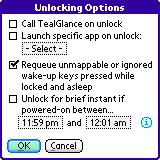
Use
Unlocking Options settings to
adjust what TealLock does after unlocking the handheld.
Call TealGlance on Unlock
This option tells TealGlance to bring up its information screen after unlocking. TealGlance normally appears on power-up, but won’t do so if the device is locked. This option provides for a delayed activation of that program.
Launch specified app on unlock
This option lets you specify a program to run after unlocking. Any application can be specified here, including the system launcher.
When this option is unchecked, TealLock tries to instead return to the program originally running before locking was requested. If the previous app was run from a card, however, then the system launcher is run instead.
Requeue unmappable or ignored wake-up keys pressed while locked and asleep
When this option is checked, hardware button presses that wake up the handheld are remembered and re-queued into the system event queue after unlocking. This has the effect of launching any apps mapped to those buttons after unlocking.
In order to use this option, the relevant button press cannot be remapped to another function. This means that either the button is a new button that does not support a mapping in Password Entry settings, or is unmapped because the Ignore initial wake-up key press option is enabled.
Unlock for brief instant if powered on in time range
Use this option for certain backup apps and similar programs that launch themselves at a specified time but purposefully refuse to do so if the handheld is locked—even if placed in the TealLock Allowed Apps list.
When this option is enabled, TealLock briefly turns off the PalmOS “device locked” flag for a fraction of a second if the handheld is powered up within the specified time range. Depending on the specific app failing to run, this may trick it into thinking the device is fully unlocked and allow automatic activation to proceed. (New in 7.00)
Chapter 6 – Display Settings
Display
Settings let you adjust the appearance, contents, and functionality
of the TealLock locking screen.
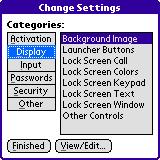
There
are eight display settings screens:
- Background Image
- Launcher Buttons
- Lock Screen Call
- Lock Screen Colors
- Lock Screen Keypad
- Lock Screen Text
- Lock Screen Window
- Other Controls
Lock Screen Placement
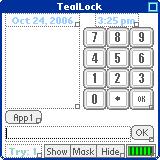
On most display settings screens you can use the Lock Screen Placement window to preview changes you’ve made to the lock screen layout, contents, or colors. Do so by tapping on the “Preview” button, which is also called “Place” in some settings screens.
Move
elements around the screen by dragging them with the pen, or use the sizing box
in the lower right. When done, tap on
the close button in the upper right corner to return to the previous settings
screen.
Background Image
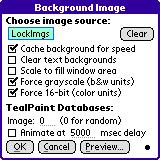
Use the Background
Image screen to select a picture to be used as a backdrop for the lock
screen. The image must already be
loaded onto your handheld, and can be in TealPaint, GIF, BMP, or JPEG
format.
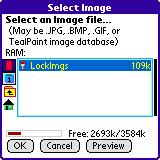
Choosing
an Image Source
Tap on the image name box at the
top of the screen to select an image.
You’ll be presented with a file selection window. Highlight an appropriate image and select Preview
to view the image, or OK to import it into TealLock.
TIP 1: Under PalmOS, image viewers sometime store images in
custom formats or placement in a hidden file volume where they are not
generally accessible. Because of this,
try copying images to an external storage card if you have trouble finding them
in TealLock.
TIP 2: If an
imported image is larger than the current screen, it will be resized down to
fit. On handhelds with variable
displays, if you will primarily be viewing the lock screen in landscape or
full-screen mode you may wish to already be in that mode when importing the
image.
Cache background image for speed
When this option is checked,
TealLock will allocate a temporary drawing buffer to speed up drawing of the
lock screen. There is rarely a reason
to uncheck this option, but it may be helpful should a device be too low on
graphics memory to run with the buffer enabled..
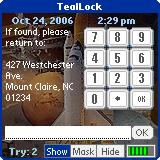
Clear text backgrounds
Normally, text item on the lock screen
are drawn with both a foreground and background color. They appear as letters on top of rectangles
of a contrasting color. When this
option is checked, however, no background appears, and a background image
“behind” the text can show through.
Scale to fill window area
If an imported image is smaller or
larger than the current display, it is normally letterboxed or cropped and
centered in the lock screen window.
When this option is checked, however, the image is stretched or compressed
to fill the whole window. The image can
be stretched taller or wider, distorting the proportions of the original
picture, so this is most suitable to abstract designs and landscapes where
stretching is okay.
Force grayscale
When this option is checked,
monochrome handhelds running PalmOS 3.3 or higher wil show background images in
16-shade grayscale instead of the default black and white mode.
Force 16-bit mode
When this option is checked, color
handhelds switch to 16-bit mode for better looking color photos.
Image number
TealPaint image databases can
contain more than one image. To select
a specific picture in a multi-image TealPaint database, enter the image number
here, or enter “0” to randomly select a different image every time you enter
the lock screen.
Animation
Check this option to treat a
multi-image TealPaint database as a single animation or slideshow. To adjust the animation speed, select a
time to pause between frames, expressed in milliseconds.
For best results, make sure the
source image used matches the current display mode of the handheld. Most monochrome devices run applications by
default in 1-bit mode, while color apps are typically run in 8-bit mode, unless
you’ve overridden these values with the Force grayscale or Force
16-bit mode options.
Launcher Buttons
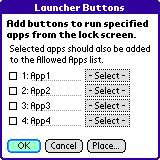
Use
the Launcher Buttons screen to add buttons to the launch screen
to run selected apps.
This adds a way to launch application that, unlike phone dialers and backup apps, may not have a way to launch themselves from a timer for dedicated hardware button.
TIP: When using this option be sure to enable the applications to your “Allowed Apps” list, described in the Security Settings chapter.
Lock Screen Call
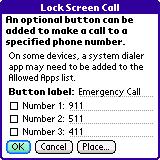
Use
the Lock Screen Call feature to add a button to the lock screen
that can be pressed to call a predetermined number. Use it as an emergency calling feature or a way to encourage
return of lost handheld.
You can select up to three emergency numbers. If more than one is enabled, a list of the available choices will pop up when the call button is pressed.
(New in 7.00)
NOTE: When enabling this feature, you will probably need to add your phone’s dialing application to your Allowed Apps List, and may wish to specify a return call time to relock the handheld after initiating the call. See Security Settings for more information on using allowed apps.
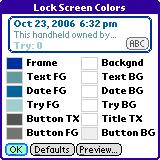
Lock Screen Colors
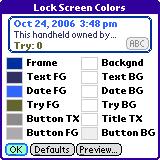
Use the Lock Screen Colors screen to adjust
the color of buttons, controls, and text on the lock screen. To change an element, tap on the colored box
next to its name. You can see a quick
preview at the top of the screen, or select the Preview button for a
full size preview of the actual lock screen.
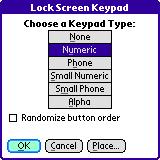
Lock Screen Keypad
Use the Lock Screen Keypad screen to select
a password input keypad. You can choose
either large or small keypads in either phone layout (123 on top) or numeric
layout (789 on top) or a full alphanumeric on-screen keyboard.
Using the Alpha Keyboard
In addition to the normal Alphanumeric keys, the Alpha Keyboard provides four special-purpose buttons:
Backspace (Left arrow)
Erases last character entered
Caps Lock (Up arrow with
gap)
Locks keyboard in shift mode
Caps Shift (Up arrow)
Shift keyboard to enter capital letters and symbols (may combine with symbol shift)
Symbol Shift (Dot)
Shift keyboard to enter international characters and additional symbols
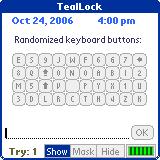
Randomize button order
Check this option to prevent someone from guessing your password from watching your pen movements. It shuffles the order of buttons every time you lock your handheld.
Lock
Screen Text
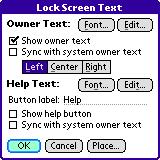
Use the Lock Screen Text settings to adjust the two optional screens of text you may add:
· Owner Text, which appears as text on the lock screen
·
Help Text, which appears in a separate popup window
when a help button is tapped.
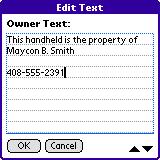
Edit Button
Select the Edit button to edit or create text.
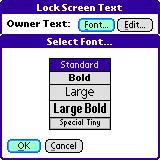
Font Button
Select the Font button to change the font used to draw the text.
Sync with system owner text
If
this option is checked, the selected text is synchronized with with the owner
text in system Prefs. If both owner and
help text are synchronized to the system text, they will be the same.
Left/Center/Right
Adjusts how the owner text is aligned in its bounding box.
Lock Screen Window
Use the Lock Screen Window settings adjust the appearance of the lock screen window frame and title bar:
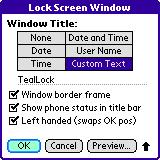
Window
title
Sets the contents of the title bar
Window forder frame
Draws a border around the lock screen.
Show phone status in title bar
Adds icons in the title bar for voicemail and signal strength.
Left handed
Swaps the
OK button to the left side of the password entry line.
Other Controls
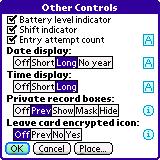
Use
the Other Controls screen to add or adjust several miscellaneous
elements for the locking screen:
Battery level indicator
Adds a battery level indicator to the lock screen.
Shift indicator
Adds a Graffiti/keyboard shift indicator to the lock screen. (New in 7.00)
Entry attempt count
Shows a count of password attempts (tries) entered into the lock screen.
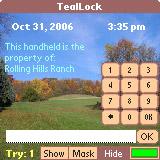
Date
display
Adds the current date in either short format (2 digit year) or long format (4 digit year), or “no year” format.
Time display
Adds a time indicator to the lock screen. If PalmOS system Prefs are set to a 12-hour time format, a “long” time display will add “am” or “pm” to the 12-hour time.
Private record boxes
Adds boxes to the lock screen that select the state of private records before unlocking the device. The initial state of the boxes can be set to match its last value (“Prev”), or specifically to “Show”, “Mask”, or “Hide”.
Leave card encrypted icon
Adds a disk icon to the lock screen that can override decryption of encrypted card files. The icon has two states:
Checkmark – Decrypt card files on unlock
Blocked (X) – Do no decrypt card files on unlock
When you leave files encrypted, they will be inaccessible and will appear missing to any programs looking for them until you relock your handheld and unlock it with decryption enabled.
The default state of the card icon
can be set to “Prev” (restore last setting), “Yes” (leave files encrypted), or
“No” (don’t leave them decrypted).
Chapter 7 – Input Settings
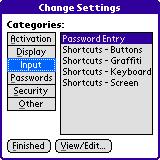
TealLock Input
Settings adjust how passwords are entered and how shortcuts activate
TealLock functions from within other applications. Input Settings include:
- Password
Entry
- Shortcuts
– Buttons
- Shortcuts
– Graffiti
- Shortcuts
– Keyboard
- Shortcuts
– Screen
Password Entry
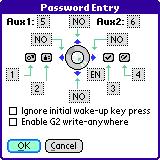
Use
the Password Entry to map characters and functions to the four
application buttons, the Palm 5-way controller, and the auxiliary voice/jog
buttons on various handhelds.
If a password is set to mapped characters, you can enter that password pen-free in all TealLock password entry screens.
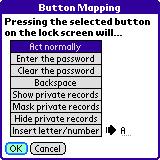
Tap on the
box next to a mapping to change its value:
Act normally
Perform no mapping.
Enter the password
Simulate press of the OK button.
Clear the password
Erase all entered text.
Backspace
Backspace.
Show/Mask/Hide private records
Set private record boxes on the lock screen to “Show”, “Mask”, or “Hide”.
Insert letter/number
Append the specified character to the text entry line.
NOTE: The following AUX button mappings are currently supported. Other and future devices may or may not use compatible key codes.
AUX1: PalmOS 5.2 jog button, CLIE jog wheel, Treo jog button, HandEra jog wheel, and PalmV contrast button.
AUX2: PalmOS 5.2 back button, CLIE back button, Treo voice record, Tungsten T3 voice record/favorites button
Two additional options are also available:
Ignore initial wake-up key press
When this option is checked, buttons pressed while the handheld is off are not mapped.
Enable G2 write anywhere
When this option is checked, the write-anywhere function of Graffiti-2 or TealScript (if present) is automatically enabled when on the lock screen.
Button Shortcuts
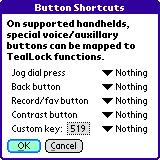
Use
Button Shortcuts settings to perform lock, show, hide, or mask
actions with the press of a special hardware button:
· Jog dial (CLIE, Treo, HandEra, OS5.2)
· Back button (CLIE, Treo, OS5.2)
· Record/favorites button (T3)
· Contrast button (PalmV)
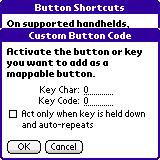
Custom
Buttons
To support other buttons, you can map an action to a user-defined a custom key.
Simply tap on the box next to “Custom Key” and press the button you wish to map. If that button generates a unique Palm key code, it will be recorded and saved as a custom mapping.
Act only when key is held down
Some hardware buttons, like the side auxillary button on Treo smart phones, issue an “auto-repeat” code when they are held down. On these buttons, you can check this option to cause the mapped action to only take effect when the button is held down and starts to auto-repeat. (New in 7.00)
Graffiti Shortcuts
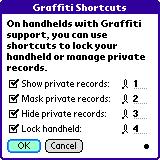
Use Graffiti Shortcuts settings to hide or show private records or lock the handheld with a special Graffiti stroke. To enter a shortcut stroke, write a cursive 'l' (lower case ‘L’) followed by the specified letter or number.
Shortcut stroke support requires a device with Graffiti, Graffiti-2, or TealScript,
which adds Graffiti support to handhelds like the Treo 650 or Treo 700p.
NOTE: Capitalization is ignored and these shortcuts override any standard graffiti shortcut macros, so you should set your TealLock shortcuts to letters that are not used as the first letter of any PalmOS macros specified in Preferences.
Keyboard Shortcuts
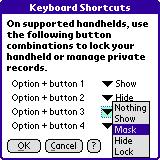
Use
the Keyboard Shortcuts screen to map actions to keyboard
combinations on a Treo keyboard. Each
entry consists of a press of one of the four main application buttons (labeled
“dial”, “calendar”, “mail”, and “hang-up” on a Treo 650) while holding down the
blue/gray option-shift button.
NOTE: On aTreo, an Option+1
combination generates the same key code as the “favorites” button on other
handhelds; so don’t map the Record/Fav button in Button Shortcuts
when also mapping the Option+1 keyboard combination.
Screen Shortcuts
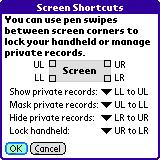
Use
Screen Shortcuts to activate TealLock with pen swipes between
corners of the active display screen.
Select the drop down pick list to map each action to a different stroke from any screen corner (upper-left, lower-left, upper-right, lower-right) to another.
Also supported is a “ron-a-matic” stroke from the Graffiti/Graffiti-2
writing area to the top of the screen.
If this stroke is mapped to an action here, TealLock overrides any
action specified in PalmOS system prefs.
Chapter 8 – Passwords Settings
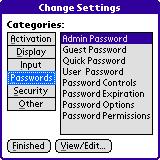
TealLock Password
Settings let you adjust how passwords are chosen and used in
TealLock. Password Settings
include:
- Admin
Password
- Guest
Password
- Quick
Password
- User
Password
- Password
Controls
- Password
Expiration
- Password
Options
- Password
Permissions
Admin Password
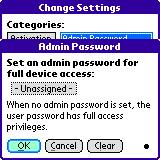
Use the Admin Password
screen to set a password that can be used to unlock the device, deactivate
TealLock, or access TealLock settings.
When an Admin Password is active, the User Password has
only the limited access specified in the Password Permissions screen
(described below).
An Admin Password is generally only useful in a
multi-user environment where individuals set their own User Passwords
but a common password is needed for technical support personnel. The Admin Password is only available
in TealLock Corporate Edition and TealLock Enterprise Edition.
Guest Password
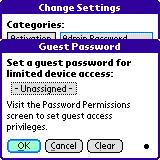
Use the Guest Password
settings to grant limited access to the handheld with a secondary
password. This feature is useful when
loaning the handheld to friends or family members but wanting to restrict the
features or applications available. For
instance, one might want to allow a guest to unlock the handheld, but not have
access to show private records.
The Guest Password can be granted different access
privileges in the Password Permissions screen.
Quick Password
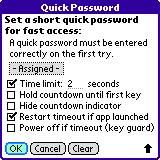
Use the Quick Password setting
to define a special short password for fast entry. When enabled, you have only one chance to enter the Quick
Password correctly. If an incorrect
password is entered, or if it is not entered fast enough, the full password is
then required.
Typically, the Quick
Password is set to a combination of letters or numbers mapped to the
hardware buttons or on-screen keypad.
When the password request first appears, a timer begins counting down
the remaining time. If the correct
password is entered (tapping OK is not required), the password is immediately
accepted. If time elapses or an
incorrect character is entered, the Quick Password is no longer accepted.
Options:
Time limit
Specifies how many seconds the user has to enter the quick password.
Hold countdown until first key
When this option is checked, the countdown begins only after the first character is entered.
Hide countdown indicator
When this option is checked, the countdown progress bar is not drawn.
Restart timeout if app launched
When this option is checked, running an “Allowed” application will cause the quick password countdown to restart if no characters have been entered and the handheld is re-locked. This can be used to prevent, say, the reception of a phone call from invalidating the ability to enter a Quick Password.
:
Power off if timeout
When this option is checked,
TealLock functions as a phone-style key guard.
The handheld will shut off if the Quick Password timer expires
before a valid password has been entered.
Any entered characters will be cleared and the timer resets so it will
start counting down again the next time the handheld is woken up.
User Password
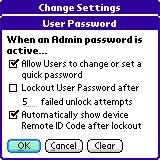
Use the User Password settings when an Admin Password
has been set. They are only available
in TealLock Corporate Edition or TealLock Enterprise Edition.
Allow Users to change or set a quick password
If unchecked, this option hides the “Quick” password box on the TealLock main screen, effectively preventing users from setting or changing a Quick Password unless granted password permissions to do so from within Settings.
Lockout User Password
Specifies how many incorrect passwords can be entered in the locking screen before the Admin Password has to be entered instead.
Automatically show device Remote ID Code after lockout
After a lockout, this option shows the device identification code that is needed for Remote Unlocking with a temporary unlock code.
Clear
Clears the user password. (New in 7.10)
Password Controls
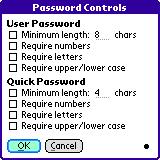
Use Password Controls to insure insecure passwords are
never selected. Options include
specifying a minimum password length and requirements to contain numerical
digits, letters, and both upper and lower case characters.
TIP: Most experts normally recommend passwords at least 8
characters long. Other requirements
further increase security, though it is particularly important not to use
common words or names as passwords.
Password Expiration
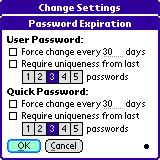
Use Password Expiration settings to guarantee
that passwords are changed regularly.
You can specify how often a User Password or Quick Password
needs to be changed, and how many times the password must be changed before an
older password can be re-used.
TIP: Experts recommend changing passwords
regularly to reduce damage done when a password is inadvertently overseen or
guessed.
Password Options
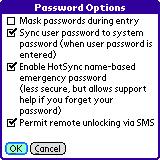
Use the Password Options screen to set the
following password entry settings:
Mask passwords during entry
When this option is checked, passwords are displayed using asterisks so that prying eyes cannot read the password as it is entered.
Sync user password to system
password
When this option is checked, the system Security password is changed to match the TealLock User Password whenever the latter is entered.
NOTE: The synchronization is one-way only. If you subsequently change the system password using the standard Security application, it will not by synchronized back to TealLock. To keep both passwords in sync, only change passwords in TealLock. Do NOT leave the system password blank and un-synced, as one must be set to keep PalmOS itself secure.
Enable emergency password
When TealLock is registered, it
is assigned an emergency password based on its HotSync user name and
registration information, which accompanies a registration confirmation and
key. This key exists as a way for our
support personnel to help customers who inevitably forget their passwords after
setting them.
Uncheck this option if you are
sure you can remember your password.
Remember that we have no ability to unlock a handheld when this option
is unchecked.
NOTE: The Emergency Password is automatically
disabled when an Admin Password has been set. Also, an Emergency Password, cannot decrypt encrypted data.
Permit remote unlocking via SMS
When this option is checked on a Treo smart phone, it allows unlocking passwords to be sent to the handheld via SMS message.
Be assured that it does not allow an easy way to unlock the handheld, as a correct password must still be sent. It only provides a way for an administrator to enter an Admin or Remote Unlock Password without having physical possession of the phone. To prevent this feature from being used to “brute force” many password guesses, the “incorrect password” popup must still be dismissed manually every time an incorrect entry is entered.
To deliver an unlock message, send an SMS text message to the locked phone with the following text, replacing “xxx” below with the password to enter.
ENTER PASSWORD
(xxx)
Note that there must be a single space both before and after “PASSWORD” in the text above, and the password must be enclosed in parentheses.
Password Permissions
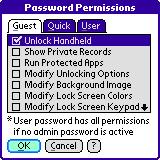
Use the Password
Permissions screen to specify where Guest, User, or Quick
passwords are accepted, and what capabilities they can access.
NOTE: User Password permissions
are only available in TealLock Corporate Edition and TealLock
Enterprise Edition and apply only when an Admin Password
has been set.
Unlock handheld
Permits the password to unlock the handheld.
Show private records
Permits the password to change the private record state.
Run protected apps
Permits the password to run apps in the Protected Apps List.
Modify Settings
Permits the password to enter the Change
Settings screen. If only some
of the “Modify” permissions are checked, the Change Settings screen will
open, but only permitted settings screens will be shown.
Chapter 9 – Security Settings
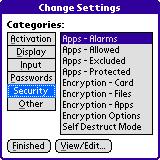
TealLock Security Settings let you configure
additional security and functional features such as encryption and bit
wipe. Password Settings
include:
- Apps
– Alarms
- Apps
– Allowed
- Apps
– Excluded
- Apps
– Protected
- Encryption
– Card
- Encryption
– Files
- Encryption
– Apps
- Encryption
Options
- Files
– Protected
- Self
Destruct Mode
Apps – Alarms
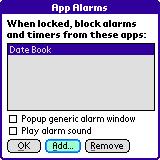
Use
the Application Alarm screen to block alarms and system timers
when the handheld is locked. Use this
feature to keep certain applications from auto-launching or putting up alarm
windows with potentially sensitive information.
Select Add to select an application to block, or Remove to take it off the list of blocked apps.
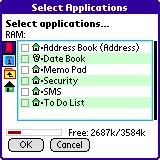
TIP: System timers are used by apps to wake up
the handheld from sleep. They perform
many different operations, including
sounding audible alarms, putting up popup reminders, and performing silent
maintenance and backup functions. It’s
sometimes difficult to guess how a timer is being used, but you can tell which
apps are using timers because they are drawn with an alarm clock icon next to
their name in the app selection list.
Popup generic alarm dialog
Pops up an info window when a blocked alarm goes off.
Play alarm sound
Play a system alarm sound when a
blocked alarm goes off.
Apps – Allowed
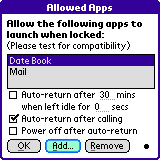
Use
the Allowed Apps screen to run specified apps even when the
handheld is locked. When an
unauthorized application tries to run, control is returned to TealLock.
This option can be used to allow phone dialers or backup programs to temporarily run even when the handheld is locked.
When running an app in “allowed” mode, normal automatic locking settings do not apply because the handheld is still “locked”. You can force a return to the lock screen, however, using the following options:
Auto-return after xx minutes
when left idle for yy secs
Returns to the
lock screen after the specified amount of time, but only if no user activity
has been detected for the specified “idle” interval.
Auto-return after calling
Returns to the lock screen after a phone call has been completed (Treo only)
Power off
after auto-return
Turns off the handheld after an automatic return
TIP: When allowing, you must still provide a way to launch the specified apps. Some applications, like timed backup programs, can be set up to automatically launch themselves at specified times. Others, like phone dialers, are mapped to hardware buttons and can still be run if you turn off Password Entry button-mapping for the corresponding button. For any other apps, you can add Launcher Buttons (see Display Options) to start them.
NOTE: The device must already be on the locking screen before it releases control, so when allowing apps that run themselves at a specified time, the wake up device to lock handheld option should be set to insure that the handheld will not still be trying to transition to the locking screen when the timed event wakes up the device.
Additional
Allowed-Mode Usage Notes:
Compatibility
This feature may not work with all devices, configurations, and third-party apps. As the device is partially unlocked to allow an app to run, any configuration must be tested to insure that the allowed app does not do anything to jeopardize security.
Security
When allowing any apps, you may wish to eliminate extra launching mechanisms that can start unwanted apps. On the lock screen, you can block hardware buttons by mapping them to other functions. If an unwanted app starts up, you may see a brief flash of its startup screen before TealLock re-locks the handheld.
Backup Programs
The Allowed Apps option can be used to allow a timed backup app to run. In order to work, the backup app must still try to run even if it detects that the handheld is locked. TealBackup supports running in this way, but the current version of some competing apps (BackupBuddyVFS) currently do not.
PalmOS-powered phones
The Allowed Apps option can be used to allow phone dialing and/or receiving on Treo phones and Kyocera Smartphones. Please test this feature to insure it is functional and secure with your handheld configuration.
See the chapter Enabling PalmOS Phones for more information on using this function to allow you to dial and/or receive calls when locked.
Encryption
Do not encrypt any data that may be needed by apps you allow to run in “allowed” mode. If you do, those apps will not be able to find the data they need, and may misbehave or recreate a conflicting copy of the missing database.
Restricted Use Mode
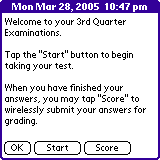
It is sometimes useful to restrict users to running only a few specific programs. For instance, a Palm handheld can be used, say, as a secure aide for a closed-book exam, or to encourage devices passed out for marketing surveys to be returned. It can even be used to, say, let your kids play games without messing up your address book.
To accomplish this, simply
enable the Allowed Apps function in conjunction with corresponding Launcher
Buttons. See the chapter Restricted Use Mode for step-by-step
instructions on how to set this up.
Apps – Excluded
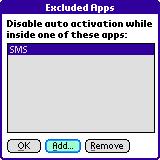
Use
Excluded Apps settings to specify apps that shouldn’t be
interrupted by automatic locking. When
a listed app is running, automatic locking and hiding is disabled until that
program exits.
Use this feature to keep automatic locking from
interrupting programs such as music and movie players.
Apps – Protected
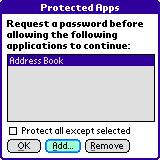
Use
Protected Apps settings to password-protect applications when the
handheld is unlocked.
When a listed application is launched, you must enter your password to continue. If an incorrect password is entered, TealLock will run the default applications launcher.

NOTE: When Protect mode is enabled for any app, TealLock sets the global system lock flag
to prevent someone from bypassing protection with a warm reset. Some applications or communications functions might disable themselves if they detect the handheld is in this “locked” state. Please test specific apps for compatibility. BackupBuddy and older versions of hi-launcher (www.hilauncher.com) are known to purposefully disable themselves when PalmOS is in a locked state.
Encryption – Card
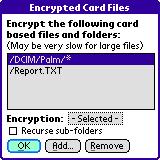
Use
Card Encryption settings to specify individual files that should
be encrypted on external flash cards whenever the handheld is locked.
Select Add to choose files to encrypt.
Select Recurse sub-folders
if you want to encrypt the contents of any subfolders inside selected
folders. If unchecked, only files
within selected folders are encrypted.
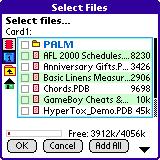
Select
individual files to encrypt, or choose Add All to automatically encrypt
any files placed into the selected folder.
TIP: The hardware read/write speed to external cards is much slower than internal memory, so be conservative when choosing which files to encrypt, as large files can take a very long time to encrypt.
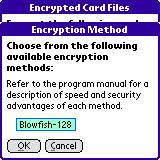
After
choosing files, select the encryption box to select an encryption method:
XOR
A custom fast encryption method that adds basic protection with minimum added encryption and decryption time.
128-bit MDC
A more secure 128-bit MDC encryption based on an industry-standard MD5-Hash
128-bit Blowfish
Industry-standard strong protection with good encryption speed
128-bit AES
Available in TealLock Enterprise Edition only, the AES algorithm provides the strongest protection available.
128-bit RSA RC4 (PalmOS)
RSA RC4 is a government-approved encryption method provided by PalmOS on the Tungsten C. On other devices, PalmOS provides different encryption methods. These appear enclosed in square brackets, such as “[Base Cryptographic Provider]”, but only device manufacturers know what algorithms they use internally.
HINT:
If a leave card encrypted icon is enabled and activated on
the lock screen, files will stay encrypted after unlock and will only be
decrypted if the handheld is locked again and unlocked with the leave card
encrypted icon disabled.
Encryption – Files
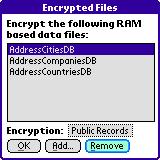
Use File Encryption settings to select individual data files in memory to encrypt.
Files are left encrypted only when
the device is locked, securing them from being directly read off the memory
chips using specialized hardware.
Unlike card-based files, they cannot be left encrypted on an unlocked
handheld, as most applications expect their RAM-based files to always be
present, and may react unpredictably if files were left encrypted.
Memory-resident database files are organized into records, some of which may be marked “private” by many applications. Both private and non-private records can be protected, and their encryption types can be individually set or turned off. By setting different encryption types for different records, maximum protection can be achieved with minimum encryption time.
Encryption Conflicts
Any files you select for encryption will not be accessible when the handheld is locked. Because of this, it is important not to run any applications that will try to access encrypted files because they will not be able to find them.
If you allow an app to run in “allowed” mode that needs an encrypted database, that app may create a new default copy of that database when it cannot find the original. This will cause a conflict during decryption when TealLock tries to restore the original file. This can also sometime happen if you soft reset while the handheld is locked.
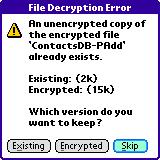
When
this happens, you’ll be allow to choose what to keep: “Existing” (delete the encrypted copy), “Encrypted” (overwrite
the unencrypted copy) or “Skip” do nothing and try decrypting again the next
time you unlock. Most of the time,
you’ll want to keep the “encrypted” file.
Encryption – Apps
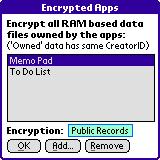
Instead of selecting files individually, you can use the Application Encryption screen to select data files by application.
When an application is listed, all .PDB database files in memory “owned” by that application will be encrypted when the handheld is locked.
Encryption Options
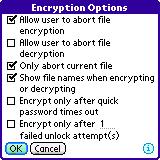
Use
Encryption Options settings to set whether individual file names
are listed during the encryption or decryption process. You can also allow files to be manually
aborted either during encryption or decryption.
Allow user to abort file encryption/decryption
Allowing encryption-abort is recommended to prevent long delays from inadvertently selecting too much data to encrypt. Use care during decryption, however, as aborting it will leave memory-based files encrypted, which could confuse applications looking for their files.
Only abort current file
When this option is enabled, pressing the abort button during encryption/decryption only affects the current file. TealLock will continue encryption/decryption of other selected files. (New in 7.00)
Show file names when encrypting
When this option is enabled, the current file being encrypted or decrypted is displayed in the progress bar.
Encrypt only after quick password timeout
Encrypt only after xx failed unlock attempt(s)
To save on encryption time, you may check the Encrypt only after xx failed unlock attempt(s) or the Encrypt only after quick password timeout options, which skip encryption for quick lock/unlock cycles until the specified number of unlock attempts has been attempted or until the quick password has been entered, whichever is first.
Files – Protected
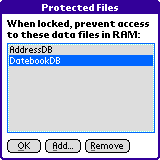
The
Protected File feature lets you prevent other applications from
accessing specified data files when the handheld is locked.
When used carefully, this special function can be used to disable specific functionality in other applications that either run in the background when the handheld is locked or run because you’ve added them to your “allowed apps” list.
The TealLock Protected File feature works by exclusively opening any files you specify, thereby preventing any other apps from accessing those same files when the handheld is locked. This allows you to hide data files from other apps without the time or complication of encrypting them.
For example, if you protect the contact database, then any other apps trying to access the database won’t be able to find contacts as long as the handheld is locked. This can be used, say, to prevent popup alarm reminders or phone dialers from displaying or changing your contacts, even if you’ve “allowed” them to run from the lock screen.
NOTE: When
this feature is enabled, other applications will be able to find the specified
databases but simply won’t be able to open or read them. Some apps may show blank data when they try,
while others may show an error or close instead. In a few cases, very poorly written applications may even crash
if they try to open the database and don’t check to see if they were
successful. Consequently, please fully
test this feature for compatibility and desired behavior with other programs.
Self Destruct Mode
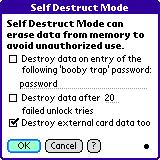
Use
Self Destruct Mode to configure TealLock’s last line of defense
against unauthorized access to sensitive data.
This feature can be used to destroy data if an attempt at unauthorized
access is detected.
When destructing, databases are first overwritten (bit wipe) and then deleted. Once the data is wiped, all writable databases are deleted and the device must be hard-reset before it can be used again.
Options:
Destroy data booby trap password
A booby trap password
can be set to destroy data if a particular password is entered. This can be used to keep someone from
guessing passwords. For instance, many
people try using “password” as a guess when they are asked for a password they
don’t know. With this in mind, you can
set your booby trap to “password” knowing there is a good chance someone would
enter it if you lost your handheld.
Being even more devious, a help
screen can be set to purposely mislead someone. For instance, one might set the locking screen help text to:
“Hint: my favorite color”, and set a booby trap to “blue”.
TIP:
Never choose a booby trap password you
might accidentally confuse with your real password.
Destroy data after too many failed tries
This option prevents brute force attacks by destructing after too many failed unlock attempts. Be careful when using feature, as a forgotten password or text entry problem (like leaving the caps shift on) could otherwise cause you to lose your data. Always fully back up all data and verify password functionality before enabling this option.
NOTE: When used in conjunction with the User Password lockout option in TealLock Corporate Edition or TealLock Enterprise Edition, this self-destruct mechanism will activate based on the number of failed attempts to unlock the device *after* the User Password has already been locked out.
Destroy external card data too
When this option is selected, files on external storage cards are destroyed as well. This can be a very slow process, so card destruction occurs only after memory files have already been erased. Card files are first deleted, then all space on the card is bit wiped to erase any trace of the original data.
Chapter 10 – Other Settings
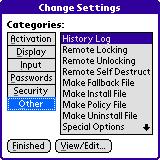
TealLock’s Other Settings include options for
managing TealLock installation, administration and special functions. Other Settings include:
- History
Log
- Remote
Locking
- Remote
Unlocking
- Remote
Self Destruct
- Make
Fallback File
- Make
Install File
- Make
Policy File
- Make
Uninstall File
- Special
Options
History Log
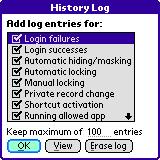
Use History Log settings to maintain and view a detailed log of TealLock activation, logins, and access for access auditing and debugging purposes.
Select entries in the checklist for items you want to monitor.
Login failures
Records unsuccessful password entry attempts
Login successes
Records successful password entry attempts
Automatic hiding/masking
Records automatic activation to hide or mask private records
Automatic locking
Records when the handheld is locked automatically
Manual locking
Records locking from the manual lock button
Private record change
Records private record state change from buttons on main screen
Shortcut activation
Records locking or hiding activation from shortcut entry
Running allowed app
Records successful or unsuccessful attempts to run an app in “allowed” mode
Running protected app
Records successful or unsuccessful attempts to run an app in “protected” mode
Password changes
Records changes made to passwords
Settings changes
Records visits to individual settings screens
Debugging info
Records detailed system internal workings for diagnosing activation problems
Debugging trace
Records low level user activity including keystrokes and button presses. This option is for system debugging only. Do not enable this option routinely, as it will also record password entry into your log file.
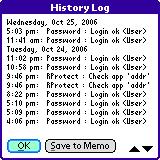
View log
Select View to see the current log. You may then export the current log to the MemoPad as an easy way transfer to transfer it to the PC. Just HotSync afterwards and open the memo in the Palm Desktop.
Remote Locking
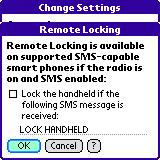
Use
Remote Locking settings to let your phone lock from an SMS text
message. Simply enter a unique pass
phrase that only you know and enable the option.
Later, should you lose your handheld, you can secure it by sending it an SMS text message from another phone with the selected text imbedded somewhere in the message.
HINT:
Be sure to choose only common characters (such as upper case letters)
that can be sent with the phone you might be using and select text that would
not ordinarily show up in a text message.
Remote Unlocking
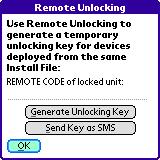
Use
Remote Unlocking to send an unlocking passkey to another phone,
or to generate a one-time use password to unlock an employee handheld in a
multi-user site license installation.
Temporary Unlocking Key
One of TealLock Corporate Edition and TealLock Enterprise Edition’s extremely useful and exclusive features is the ability for an Administrator to generate a temporary unlocking password. This can be used to unlock an employee’s handheld from another location, either by reading the Remote Unlocking password over the phone or transmitting it over SMS to the individual user’s phone.
Valid for only one hour, the remote passkey is no longer valid after expiration and is secured by 128-bit encryption. It cannot be used to calculate a passkey valid at a later date or derive the administrator passkey.
The Remote Unlock feature can only
be used on handheld units with identical installation settings to the
Administrator’s handheld. Settings will
be identical if…
1)
The remote handheld was installed using an Install File
generated on the Administrator’s handheld, or
2)
If both units were set up using the same Install File.
Remote
Unlock will not function
on handhelds installed with differing administrator passwords or in the Standard
Edition or Lite Edition of TealLock.
Example – Using a Temporary Unlocking Key
1)
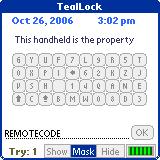
Display
Remote ID Code
If one is
not already shown, the administrator instructs the employee to enter the text
‘REMOTECODE’ (no space, not case-sensitive, no quotes) as the unlocking
password on the locked-out device:
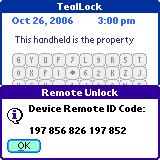
2)
Retrieve Remote
ID Code
The employee’s handheld will return a 15 digit numerical Remote ID
Code which encodes the date-stamp and identity hash of the device. This code is reported back to the
administrator:
3)
Enter Remote ID Code in admin handheld
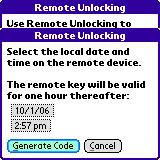
Using their own handheld, the administrator enters the Remote ID Code on the Remote Unlocking screen, and generates a temporary unlocking code keyed to the employee device that is valid for one hour from the ‘Valid at’ time.
The validity of the code is verified by the time on the remote unit, so if the time on that device is set incorrectly or if the employee is in another time zone, the remote time should be used when making the code.
NOTE: To prevent an employee from requesting a passkey which may be valid at a future date, TealLock will show a warning if the Remote ID reflects either 1) a future time relative to the time on the Administrator’s handheld, or 2) if the install time on the remote handheld precedes the last time the administrator key was set on the administrator’s handheld. If time differences are due to time zone discrepancies or if the administrator passkey has been adjusted (and restored) after initial installation, the warnings can be ignored.
4)
Generate
Unlocking Code
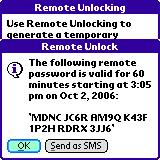
The administrator taps ‘Generate Code’ to generate a 28-digit
temporary unlocking key valid for the specified time. Unlike the numerical Remote ID code, the Unlocking Code will
consist of both numbers and letters.
NOTE: The letters i, z, and o are not used in the unlock code to avoid confusion with the numbers 1,
2, and 0, respectively.
5)
Unlock handheld
The administrator either relays the
unlock code to the employee, who enters it into the locked device to gain
access, or sends it to the other handheld if both handhelds are SMS-capable
Treo smart phones.
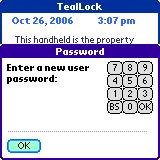
6) User
selects a new password
After unlocking, the employee will be asked to enter and verify a new User Password to replace the lost one.
Sending Password via SMS
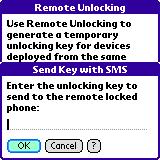
The
Remote Unlocking screen can also be used to send an unlocking
password to another handheld. This
allows an administrator to send a key without having to be in physical
possession of the handheld.
This process just automates the creation of an SMS message in the correct format.
Any password can be sent in this way if the receiving handheld has the Permit remote unlocking via SMS option enabled. The password will still be verified by the receiving handheld as if it were entered manually.
NOTE: See Permit remote unlocking via SMS for information on manually formatting an SMS unlock message from another non-PalmOS phone. If an incorrect password is sent, the “invalid password” message must be dismissed manually to prevent someone from using this feature to automate the brute force cracking of a password.
TealLock will mark the message as “taken” to prevent it
from appearing in the normal SMS Inbox.
However, a password sent in this way may not necessarily be secure from
interception by phone carriers or third party SMS monitoring utilities.
Remote Self Destruct
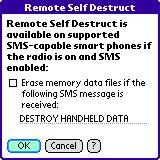
Use Remote Self Destruct settings to enable protection of your handheld should it be lost or stolen. To enable it, select the checkbox and choose a unique pass phrase.
Later, should you lose your handheld, you can destroy any
data on it by sending it an SMS text message from another phone. Simply imbed
the selected “destruct” text somewhere in the message.
TIP: For obvious reasons, chose a pass phrase that cannot be guessed or accidentally included in a normal SMS message.
Make Fallback File
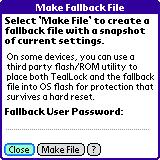
Use
the Make Fallback File screen to create a settings file with a
copy of current settings. When moved
along with TealLock into flash memory (by using a third party utility like
FlashPro, JackFlash or RomTool), the file can be used to restore settings and
lock the handheld even after a full power loss or hard reset. This might encourage the return of a lost
handheld.
WARNING: Be extremely careful when using a fallback file for this purpose. Do not attempt this procedure using pre-release versions or test builds, or with passwords one might lose, as recovering the unit afterwards can be extremely difficult, or sometimes impossible.
To create and use a fallback file:
1)
Turn
off TealLock
2)
Move
TealLock into flash using a third-party flash utility like FlashPro, JackFlash,
or RomTool
3)
Turn
On TealLock (now in flash)
4)
Write
a fallback file
5) Move the settings file (“TealLock 6.xx Fallback File”) into flash as well.
Before the file is written, you will be asked for a password to imbed into the file. The passkey will be restored in event of memory loss and will be set as the system password too. Use this feature with extreme care, because if you forget your passkey, you may be permanently locked out of your device.
NOTE: Because
of the high potential risk and the difficulty of using a third party flash
utility, we do not generally recommend using this feature, and cannot give
specific support and instructions beyond what is presented here.
Make Install File

Use
the Make Install File screen to create a snapshot of settings to
install on other handhelds in a corporate multi-user site license.
NOTE: An Install
File will also copy entered registration keys to target devices. If the other devices are not running
identically-keyed site license copies (available for 50+ units), they will need
to be manually registered with their individual passkeys after installation.
To create and use an Install File, perform the following steps:
1) Configure an initial administrator handheld with the desired individual display, activation, and password settings. If the program is a customized program version received as part of a site license, enter the company registration key as well.
2) Open the Make Install File screen to create the install file on the model handheld. You will be asked for a password to imbed into the file, which will be the initial password users must enter to unlock the device immediately after installation. After unlocking the handheld, each employee will be asked to enter a new unique individual password for personal use. After creating an initial password, select Make File.
3) HotSync the administrator handheld. The install file will be copied to the handheld’s backup folder on the desktop computer. The exact location depends on where the Palm Desktop Software was installed, but a typical location is
C:\Program Files\Palm\UserName\Backup
Where “UserName” is an abbreviated form of your handheld’s HotSync User Name.
4) Locate the backed-up file on the desktop and make a copy to a convenient location. If you are encrypting applications or have selected protected apps or allowed apps, you should also recover the settings files associated with these settings:
"TealLock_6.xx_Help_Text" Help text (if not synced to system)
"TealLock_6.xx_Owner_Text" Owner text (if not synced to system)
"TealLock_6.xx_Image" Imported image file
"TealLock_6.xx_Allowed_Apps" List of allowed apps
"TealLock_6.xx_Protect_Apps" List of protected apps
"TealLock_6.xx_Alarmed_Apps" List of alarmed-blocked apps
"TealLock_6.xx_Excluded_Apps" List of excluded apps
"TealLock_6.xx_Enc_Apps" List of encrypted apps in RAM
"TealLock_6.xx_Enc_Files" List of encrypted files in RAM
"TealLock_6.xx_Enc_Cards" List of encrypted files on card
5) Using the Palm Install Tool, install the install file TealLock, and any desired settings files to individual handheld devices. If a previous version of TealLock is already running on any of the devices, it must be turned off first to continue.
For convenient installation, the program TealInstall can also be used to bind TealLock and the install file into a single self-installing Windows executable file which can be distributed via email, networks or other convenient means. With TealInstall, the employee only need double-click on the file to install TealLock at the next HotSync. Download TealInstall on our developer’s page (www.tealpoint.com/developr.htm) or contact us for a corporate site license.
NOTE: Other third-party HotSync solutions, such as Extended Systems can be used here as well. To work, the solution need only be able to simultaneously install all files onto a target handheld and trigger a soft reset after installation.
6) Unlike a simple settings file, the install file forces a reset on the new Palm after HotSync. TealLock will automatically install, activate, and lock the Palm, and require the initial password to unlock. After unlocking, it will ask the user to specify a new password before continuing.
7) If a customized site-license version of TealLock Corporate Edition or TealLock Enterprise Edition is being used, it should already be registered from the install file. If individually-licensed copies are use, each individual registration passkeys will need to be entered to turn off registration reminders.
Make Policy File
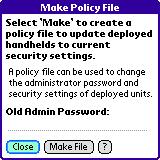
Use
the Make Policy File screen to change Admin Passwords,
security settings, and options in a multi-unit site license. Unlike an Install File, a Policy
File updates the settings in handhelds that are already running TealLock,
and allows users to keep their existing passwords.
A Policy File is created and used almost the same as an Install File, except that instead of an initial User Password, the old Admin Password is specified. Existing users need not change their password, as it will automatically be merged into the new settings when they unlock the handheld.
TIP: You should change your Admin Password prior to creating and distributing a Policy File. This will keep someone from using a hacked copy of the Policy File to compromise security in deployed handhelds.
Make Uninstall File
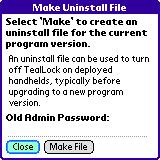
Use the Make Uninstall File screen to turn off or update TealLock versions in a multi-user site license installation of TealLock Corporate Edition or TealLock Enterprise Edition.
To use this feature, perform the following steps on a handheld running the SAME VERSION of TealLock as the units in the field:
Deinstallation Instructions
1) Open the Make Uninstall File screen. You will be asked for a password to imbed into the file, which should be the Admin Password installed onto the field units.
2) HotSync the administrator handheld. The install file will be copied to the handheld backup folder on the desktop computer. The exact location depends on where the Palm Desktop Software was installed, but a typical location is
C:\Program Files\Palm\UserName\Backup
Where “UserName” is an abbreviated form of the handheld HotSync User Name.
3) Locate the backed-up file on the desktop and make a copy to a convenient location.
4) Using the Palm Install Tool, install the Uninstall File to the field units. Other HotSync solutions (such as Extended System) can also be used to install files to the other handhelds. The TealMover file transfer program can even be used to directly beam the file onto a field unit.
5) After receiving the Uninstall File, a dialog requesting a soft reset should appear on each handheld. When tapped, the units should reset and restart with TealLock turned off, ready for deletion or installation of a new program version and settings.
When changing settings only
When updating TealLock settings but not changing TealLock versions, use a policy file to perform both in a single step.
When updating TealLock versions
For custom site licenses, we modify the application identifiers in each program release to allow different versions to coexist simultaneously on the handheld. Thus, when upgrading TealLock to a new version, de-installation of the old version and installation of the new can be done simultaneously if using customized site license PRC files.
SECURITY NOTE: The Uninstall File feature simply imbeds a lightly-encrypted copy of whatever password you enter when you create the file. It does not derive the password from the current Administrator Password set on the device. Thus, the feature cannot be used beforehand to compromise an administrator password.
However, once an uninstall file has been created and deployed in the field, the old administrator password should be considered insecure, as anyone with a copy of the file can use it to turn off security on any units using the old administrator password. Thus, care should be taken to upgrade all devices in the field as simultaneously as possible once the old administrator password is no longer secure.
Special Options
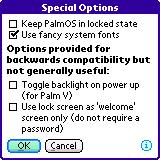
Use
Special Options to set system configuration options or
rarely-used settings kept mainly for compatibility with older TealLock
releases:
Keep PalmOS in locked state
When this option is set, PalmOS is kept internally in a
“locked” state at all times. This
guarantees that a soft or warm reset will always bring up the PalmOS system
lock screen, even if TealLock was not locked prior to the reset. (New in 6.73)
As is the case when using the “Protected Apps” mode, you must test third party applications for compatibility with this mode, as a few apps (namedly BackupBuddy and older versions of hi-launcher) are designed to disable themselves when they detect that PalmOS is locked.
Use fancy system fonts
On high-resolution devices, TealLock defaults to special thin-line system fonts that give the program a more elegant appearance similar to Sony CLIE handhelds. Set this option to ‘None’ to go back to PalmOS standard heavy fonts, or ‘Auto’ to use thin-line fonts for everything except buttons. (New in 6.75)
Toggle backlight on power up
When this option is set, a command
to toggle the handheld backlight (if supported) is to the PalmOS display
system. Use this option to
automatically turn on the backlight on devices (like the PalmV or m505) that do
not store the previous state of the backlight.
On modern devices that already
restore the previous state, this option will cause the backlight (if optional)
to alternate between on and off at each use, which is not a particularly useful
feature.
Use lock screen as ‘Welcome’ Screen
This unusual option is present when TealLock is not really being used as a locking program at all. Instead, the lock screen is used as a “Welcome” screen for commercial or promotional purposes, and automatic “locking” activation is used to bring up this welcome screen. Setting this option turns off the password requirement for the locking screen, while still leaving the password in place for securing private records.
Tips and Hints
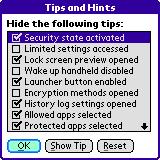
Use Tips and Hints settings to view, show, or hide various pop-up tips screens that TealLock inserts throughout the programs. These tips appear when you visit configuration screens or activate special functions that require special explanation. If you miss a tip, you can find and review it here.
Chapter 11 – Enabling PalmOS Phones
We recommend the following settings when running on a PalmOS-powered phone.
Allowing Timed Activation
As phones tend to automatically activate when a call is received, we recommend setting the Wake up to lock handheld option to prevent incoming calls or messages from interfering with automatic timed locking. This option is also necessary if using automatic locking in conjunction with the Allowed Apps feature below.
Receiving
Incoming Calls
Allowing Phone App
The
phone/dialing screen in most PalmOS Phones is actually a separate
application. In order to receive calls
when the TealLock is locked, you add it to your Allowed Apps list.
Kyocera 7135: On the Kyocera 7135, the dialing application is simply
called “dialer”.
Treo600/Treo650: On the Treo, it is called “Phone”.
As functionality varies from device to device, please test this feature to insure it is functional and secure with your handheld and current configuration.
Enabling Call Answering Button
For incoming calls on the Treo600 series and most other phones, the system will automatically attempt to launch the phone application in response to an incoming call. On these devices, no additional configuration is necessary to receive calls. For other phones, receiving calls, if possible, may require enabling an “answer phone” button to launch the dialing app. For these devices, follow the instructions below for outgoing calls.
Dialing Outgoing Calls
Once incoming calls are enabled, all that need to be done to allow outgoing calls is simply enabling a mechanism to manually launch the phone/dialing application.
Hardware Button Mapping
On the Treo600 and Treo650, the phone application is mapped by default to the first application button. To enable the normal dialing functionality for these and similar devices, simply turn off Password Entry mapping in TealLock for that particular button, setting the mapping to “Act Normally”.
Alternatively, you may wish to leave some key mapping in place if you want to lock out outgoing calls but still use the Allowed Apps feature to allow incoming calls.
Screen Button Mapping
If the normal dialing method does not work, say because the dialing application is normally brought up by a silkscreen tap or other locked-out interface, you can still map an on-screen button to access the dialing screen. Do this by enabling a Launcher Button mapped to the dialing app.
Treo600 / Treo650 Operation
Dialing Screen Operation
On the Treo600 and Treo650, the dialing screen can limit some functionality when the system is locked. The options at the bottom of the dialing screen (depending on system version) may be locked out and may be replaced by simple Dial / Hangup / Cancel buttons. Because of this, you cannot switch to the address book directly from the dialing screen and must select “Cancel” when you want to close it.
On the newer 650’s, an expanded favorites menu is normally available at the bottom of the screen. You may wish to test any applications you set here to make sure they do not interfere with TealLock when locked or otherwise provide unauthorized access to data. When a device is locked, TealLock prevents the user from changing what applications are mapped to these buttons.
Dialing from the Address Book
To make a call using the address book, you must add the AddressBook/Contacts application as another Allowed app. Then, you must either map a hardware button to the address book or turn on the on-screen Launcher. You can then call up the address book directly and dial a call from there.
NOTE: If you enable the address book in this way, all your non-private contacts will be accessible even when your handheld is locked.
Chapter 12 – Restricted Use Mode
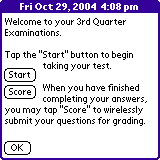
It is sometimes useful to restrict users to running a few programs. TealLock’s Allowed Apps feature can allow a Palm handheld to be used, say, as a secure aide for a closed-book exam, or to encourage devices passed out for marketing surveys to be returned. It can even come to the rescue, allowing you to hand your device to your kids to play games without risking your address book.
Setting up Locking Screen
To set up TealLock in Restricted Use mode, the lock screen should be set up as a main menu, probably with instructions and buttons to launch the specified app(s). You can configure the appearance of the lock screen accordingly by entering instructions for the user in the Owner Text settings screen.
Setting up
Password
A secure password should be set that is unknown to the users receiving the devices.
Setting up Applications
The last step is to assign one to four applications as Allowed Apps, and enabling an on-screen Launcher Buttons for each of them.
A user can then tap on a button to launch the “allowed”
app. If they try to exit that app, they
will be returned to TealLock. If they
try to soft reset the device instead, the handheld will be returned to the
system lock screen, again securing the device from running other applications.
Appendix A – Usage Tips
Setting a Password
If you set a password, you'll be required to enter it before unlocking it or showing private records. Keep a copy of your password in a safe place. Be sure to set a password for the standard security app as well, as this is needed to secure PalmOS. We recommend you set both passwords to the same value or use the Keep system password in sync option to do this automatically.
Emergency Password
When
you register, you'll be assigned an emergency password based on your
registration key and HotSync User Name that can be used to unlock your unit
should you forget your normal password and have the “Emergency Password” option
set. This is not the same as your registration key. If you need an emergency key, you can request that it be sent to
the registration email that we have on file.
NOTE:
The emergency password only works
with TealLock, not with the System Lockout screen, which comes up if someone
tries to bypass TealLock by resetting the handheld. Also, the emergency Password is disabled in TealLock Corporate
Edition or
TealLock Enterprise Edition once an administrator password is set.
You
can disable the emergency password in the standard edition as well by
un-checking the corresponding option in the Password Options settings
screen. Lastly, the emergency password
can be used to gain last-resort access to the device, but it WILL NOT DECRYPT
DATABASES that you have encrypted on the device, and any data encrypted when
you use an emergency password will likely be lost.
Receiving calls with your Treo or Kyocera Smartphone
TealLock does not automatically
allow applications to run while your handheld is locked. Since PDA phones require a Phone/Dialing
application to run in order to receive calls, you need to specifically set
TealLock to allow the Phone/Dialer app to run.
See the Chapter: Enabling PalmOS Phones for more
information on configuring TealLock to best work with combination
phone/organizer devices.
Welcome Screen
If
you want to use a password to protect your private records, but don't want to
lock your device, you can set the "Don’t require password"
option. This turns the lock screen into
a "welcome" screen that does not require a password, but shows your
message and waits for an "OK" before continuing.
System Lockout Screen
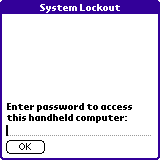
If
your handheld is reset while locked or running in Protected Mode,
TealLock will fallback to the System Lockout Screen in ROM for
maximum security. This lockout screen has the text "System Lockout"
in the title bar on older devices, and the date and time on newer ones.
PalmOS
is hard-coded in the ROMs to put up this screen, which cannot be bypassed
without the correct password. Don’t try
to avoid this by running your handheld without a system password, as a system
password is needed to keep PalmOS secure.
The
password for this screen will only be the same as TealLock's password if you
set them to be the same, or use the advanced option “Keep system password in
sync” to do this automatically whenever you change the User Password.
The TealLock emergency password and administrator passwords will NOT work for
the System Lockout Screen, and there is no way past this lockout screen if you
forget the password here.
Appendix B – HIPAA Compliance with TealLock
Background
The Health Insurance Portability and Accountability Act (HIPAA), establishes standards, requirements, and penalties designed to insure the privacy and security of patient records and data. Finalized in February 2003, the security provisions of HIPAA include physical, administrative, and technical safeguards to protect the integrity and access to information. Covered health care organizations are required to comply with HIPAA or face penalties of up to 10 years imprisonment and a $250,000 fine.
TealLock HIPAA compliance features
With more and more patient-related data finding its way onto
to physician-owned handhelds, TealLock can play a vital role in insuring that
any organization’s HIPAA compliance program.
TealLock features relating to HIPAA Security Technical Safeguards (164.312)
include:
Authenticated Access Control TealLock
password-protection insures that only persons with access rights can view or
modify protected health information (PHI) stored on the device.
Password Strength TealLock
password controls prevent insecure passwords from being selected. Options requirements include password
length, inclusion of numbers inclusion of letters and requirements for mixed
case passwords.
Password Aging TealLock password
expiration can require passwords be changed at regular intervals and be
required to differ from recently used ones.
Automatic Logoff TealLock
can automatically lock the handheld a specified number of minutes after a
password is entered, performing an automatic logoff.
Inactive Session Termination TealLock can
automatically lock the handheld after a specified number of minutes of
inactivity.
Emergency Access Procedure TealLock
Corporate/Enterprise Edition’s administrator passwords can provide authorized
individuals full access rights to data stored on the handhelds in an
emergency.
.
Data Partitioning TealLock’s
password permissions, guest password, and protected mode access can limit
access to specific applications and their data to specific passwords,
preventing unauthorized data access from guests who have been loaned a handheld
for a specific purpose.
Encryption and Decryption TealLock
supports encryption and decryption of data stored both in memory and on
external storage cards with industry-standard 128-bit protection and optional
128-bit AES encryption in TealLock Enterprise Edition.
Audit Trail TealLock’s History Log feature provides an audit trail for tracing for all logins, logouts and attempted logins using any enabled device passwords.
TealLock site licenses are
available for companies and organizations of 50 or more handhelds. Contact us at corporate@tealpoint.com or
visit www.tealpoint.com for more information.
Appendix C – Security Whitepaper
Password Security and Data Encryption in TealLock
TealPoint Software
This document outlines the password and encryption
methods used in TealLock as they apply to TealLock Corporate Edition for
PalmOS. TealLock is a security
application for PalmOS handhelds, supplementing the security of the device with
an automatic password-based locking mechanism and optional encryption of
selected databases while the device is locked.
Individual
Passwords
Both individual user and administrator passwords are
handled in TealLock in a similar manner.
The passwords are not saved on the device, but hashed using an industry
standard 128-bit MD5 algorithm. When a
password is requested, entered values are hashed using the MD5 and compared to
saved values to gain access.
Remote
Passwords
Remote-unlocking passwords, unique to TealLock on
the PalmOS platform, allow IT personnel to issue time-sensitive passwords to
individual users to unlock their devices without compromising the global
administrator password or future remote passwords. While simple checksums and embedded bits in unlocking keys are
used to code a particular unlocking key to a single device or hour of the day,
an MD5-based OTP (one time password) system prevents a code from being used
after the day of issuance even if the program code is reverse-engineered. When generating codes on the administrator
device, TealLock issues a warning should an employee misadjust their system
time in an attempt to request a key for a future date. TealLock can generate 1000 unique remote
passwords, one valid for each day after initial selection of the administrator
password. Thus, the administrator
password used on devices in the field should be changed at least once every 2
and ½ years to avoid running out of valid remote passwords.
Encryption
Keys
Encryption keys in TealLock are generated using an
MD5 hash of the User Password, utilizing a separate hashing key from that used
for password verification. After
encryption, the key is deleted from memory.
When a User Password is entered to unlock the handheld, it is hashed
using the encryption hashing key to regenerate the encryption key used to
decrypt the encrypted data.
In TealLock Corporate Edition, when an
administration key has also been set, a second encryption key based on the
administrator passkey is also generated.
The user and admin keys are then each used to create encrypted backups
of the other using a 128-bit MDC/MD5 block cipher, and the original keys are
erased from the device. This system
allows recovering of the encryption key only if either the administrator or
User Password is entered.
Encryption
Algorithms
TealLock supports three standard encryption methods:
1)
Fast
The “fast” encryption
method utilizes the output of a 64-bit pseudo-random number generator as a bit
stream to XOR with the data to be masked.
Designed for speed, it is not designed to be robust from a “known-text”
attack by a crypto-analyst, but is suitable for routine use and protection from
ordinary individuals.
2)
128-bit MDC/MD5
This known algorithm,
added to TealLock in version 4.00, consists of a message digest cipher (MDC)
using an MD5 algorithm as the one-way hashing function. Commonly in use, this is known as an MDC/MD5
and is the slowest algorithm supported, but is useful for encrypting small
amounts of data.
3)
128-bit Blowfish
Added to TealLock in
version 4.15, the blowfish algorithm was created by Bruce Schneier as a drop-in
replacement for DES or IDEA, and is growing in popularity as a strong
encryption algorithm. Supporting
variable key sizes from 32 to 448 bits, it has been implemented in TealLock
using a 128-bit key.
4)
128-bit AES
Added to TealLock in
Enterprise Edition, AES provides the strongest encryption choice. TealLock’s AES algorithm has been tested and
verified with the AES Monte Carlo Test (MCT).
Encryption
Strength
All encryption methods use keys based on User
Passwords, salted with additional machine metrics specific to the device and
files being encrypted. The 128-bit keys
provide maximum protection for alphanumeric passwords up to 20 characters in
length. Real-world protection depends
on the actual length of User Passwords.
It is alarming and somewhat amusing to note some
past competing products claiming 512-bit or higher protection, which is, of
course, unachievable since all salting data must reside in memory with the
device and the strength of the encryption from a brute force attack relies on
the strength of the user password. A
512-bit encryption key would require users to enter passkeys with 80 or more
randomly chosen characters. A common
minimum password length of 8-characters represents at most only 52 or so bits
of entropy, limiting any true achievable security to the same bit length
regardless of encryption bit depth. In
reality, using a 512-bit encryption algorithm under such circumstances and
filling in the missing bits with salting data stored on the device could likely
compromise security and result in less secure data than encryption algorithm
chosen to match password length.
Additional
Password Features
The selection of insecure passwords by end users is
the largest security threat in any corporate environment. To enhance password security, TealLock
supports features to enforce minimum lengths for User Passwords and optional
requirement for both letters and numbers and/or upper and lower case characters
to be present in passwords to prevent “dictionary” cracking methods. In addition, options are provided for both a
User Password lockout and data self-destruct (bit wipe) modes to deter brute
force attacks.
Device-specific
Implementations
TealLock supports additional encryption ciphers by
way of the PalmOS Cryptomanager library.
Encryption ciphers installed into ROM by the handheld manufacturer
are automatically recognized by TealLock and make available for use.
On the Palm Tungsten C handheld, TealLock supports
optional 128-bit RC4 encryption via the Cryptomanager library. In fact, the standard Security application
present in ROM on both the Tungsten C and Tungsten T2 are special streamlined
versions of TealLock standard edition, licensed by Palm from TealPoint Software
specifically to enhance the security of those devices for the enterprise
market.
Appendix D – Compatibility
As
we cannot control the style and robustness of other products, we cannot
guarantee compatibility with Palm OS applications beyond those included from
Palm Computing. However, we try to resolve compatibility issues as best we can.
Installation and launching
I can't HotSync the new version or move it to
Flash memory
The built-in delete-protection will
prevent you from overriding the program while it is currently running. You must
first turn it off first before upgrading to a newer version or deleting
the program.
TealLock crashes as soon as I try to run
it; I've restored from backup
There is a known problem with
Backupbuddy correctly backing-up and/or restoring TealLock, possibly because it
cannot handle files which are currently locked and hooked up into PalmOS. When
run, Backupbuddy "restores" a corrupt 1k file which cannot be run or
deleted by the standard system launcher. To fix it, use TealMover or a similar
file-management program to delete the 1k TealLock file after turning off its
protect and read-only bits and reinstall TealLock from the original download,
and check with Blue Nomad for more assistance.
Password entry
The Quick Password doesn't work sometimes...
By default, the four hardware
buttons are mapped to '1','2','3', and '4', respectively. This allows you to
unlock your device 'pen free' using the Quick Password if your Quick
Password uses these numbers or whatever characters you choose to map. When
you turn on the device using a hardware application button (or accidentally do
so while it's in your pocket), that first press counts as entering a key, which
will invalidate your Quick Password entry. To keep this from happening,
you can map all four buttons (and optionally the Palm V contrast button) to
nothing by setting them all to "no".
In TealLock 5.0, you can set the Quick
Password countdown to start only after the initial key presss.
Help! My Treo keeps asking me for a 4-digit
numerical password, but I haven't set one.
This is the phone-locking screen
that is part of an older Treo's "Phone" application. It is not a request coming from
TealLock. The Treo will automatically
activate its own locking in certain circumstances, but uses a different
password that is not related to the one set in TealLock. By default, this
password is set to the last 4 digits of your phone number.
Help! I
reset the Palm and my password doesn't work.
After
a reset, TealLock falls back to the system lockout screen, which is part of the
Palm OS, not the TealLock locking screen. If you set the standard Palm security
app to a different passkey, and have not set the "Keep system password in
sync" option or have changed the system password after the one in
TealLock, enter the system key instead of your TealLock key. The system
security screen says "System Lockout" in the title bar.
PalmOS Phone Support
How can I receive calls when locked?
Try using TealLock’s Allowed Apps
feature to permit your phone’s dialing application to run. See the chapter: PalmOS Phones
above for more information.
Compatibility
Is TealLock compatible with PalmOS 5?
Yes. TealLock is fully compatible
with PalmOS 5 and handhelds running ARM processors like the Tungsten T.
Sometimes, I turn on my device and only a
blank screen is showing...
An alarm going off or a conflict
with the running program may have prevented TealLock from switching to the lock
screen. The active screen or alarm dialog is probably active and waiting for a
button tap, but its buttons have just been erased in preparation for the
locking process. Try turning off the "blank screen" option in
TealLock if this occurs.
Alarms
My alarms or snooze messages do not show when
the handheld is locked.
Are you encrypting the Datebook or
ToDo databases? When a database is encrypted, it is protected from access to
safeguard the data, so the Datebook application cannot access it. When TealLock
detects a Datebook alarm with an encrypted database, it will sound and show a
substitute alarm screen. Datebk5, however, may also expect the ToDo database to
be unencrypted as well, and may not display snooze messages if the ToDo
database is encrypted.
Under PalmOS5, the datebook will
show alarms as “Private Appointment” when the handheld is locked. This is standard functionality also found in
the standard security app and part of designed PalmOS locking behavior.
If you want to purposely block
alarms that are being shown, add the corresponding apps to our Alarmed Apps
list.
Encryption
What kind of encryption does TealLock
support?
TealLock supports a number of
different encryption types, from a simple fast encryption method to
industry-standard 128-bit Blowfish encryption. On a Tungsten C, RC4 is also available.
How
to I Restore Encrypted Records after I reset?
If the Palm is reset while on the Palm locking screen, TealLock will fall back to the system security screen. When this is unlocked, TealLock will automatically launch and decrypt the encrypted records. If for some reason, a conflict with installed “hack” extensions, for instance, TealLock is not able to decrypt the records, simply relock and unlock under TealLock to restore your records. Do not change your password before doing so and do not run other programs that may try to access the encrypted records, as they may either crash or modify the encrypted data, preventing it from being decrypted properly.
Flash Memory
Can I put TealLock in flash memory or extra
protection?
Yes. We do not recommend using this
feature for most people, but it has been included for customers with specific
needs in this area.
See the manual on how to create a
"settings file" to snapshot your current settings. To put both into
non-removeable flash memory (if present on your device), use a utility like
FlashPro, JackFlash or RomTool. Note that you cannot put TealLock into a
*removable* flash card because it must stay connected to the system to remain
functioning.
Site Licenses
How can I obtain a licensing information for
TealLock Corporate Edition?
Please email our Corporate Services
Department at corporate@tealpoint.com. Site licenses are available for 50 or
more customers. Download the latest version from our Corporate Edition
information page at http://www.tealpoint.com/corplock.htm.
Appendix E – Products
Visit us online for our complete product line, including:
SHORTCIRCUIT ( http://www.tealpoint.com/softshrt.htm
)
A new twist on gameplay fused from your all time action
puzzle favorite games, connect falling conduit pieces into explosive loops in
this frantic race against the clock.
SUDOKUADDICT ( http://www.tealpoint.com/softsudo.htm
)
Sudoku Addict brings to your handheld the addictive
worldwide puzzle craze that has displaced crossword puzzles in many newspapers
in Great Britain and Japan.
TEALAGENT ( http://www.tealpoint.com/softagnt.htm )
Get news, movie times, stock quotes, driving directions,
web pages and more without need for a wireless connection. TealAgent fetches and formats web-based
content for offline viewing.
TEALALIAS ( http://www.tealpoint.com/softalia.htm )
Free up memory and make the most of external expansion
cards. Placeholder 'Alias' shortcut
files automatically find, load, and launch apps and data from external SD
cards, increasing free main memory.
TEALAUTO ( http://www.tealpoint.com/softauto.htm )
Track and graph automobile mileage, service, and expenses
with TealAuto, the complete log book for your car or any vehicle. Extensive customization options and
unmatched in features and functionality.
TEALBACKUP ( http://www.tealpoint.com/softback.htm )
Backup your valuable data with TealBackup, supporting
manual and automatic backups to SD/MMC/CF cards and Memory Stick, backups
through HotSync, and optional compression and encryption.
TEALDESKTOP ( http://www.tealpoint.com/softdesk.htm
)
Launch applications with TealDesktop, the themed
replacement for the standard system launcher screen with tabs, multiple card
folders, drag and drop, and more
TEALDOC ( http://www.tealpoint.com/softdoc.htm )
Read, edit, and browse documents, Doc files, eBooks and text
files with TealDoc, the enhanced doc reader.
Extensive display and customization options; TealDoc is unmatched in
features and usability.
TEALDIET ( http://www.tealpoint.com/softdiet.htm )
Shape up your life with TealDiet, the diet, exercise, and
personal tracking application for mobile devices. Lose weight, build more muscle, and live healthier with TealDiet.
TEALECHO ( http://www.tealpoint.com/softecho.htm )
Improve your Graffiti text input speed and accuracy, seeing
what you write with TealEcho digital "ink". No more writing blind!
TEALGLANCE ( http://www.tealpoint.com/softglnc.htm )
See the time, date, upcoming appointments and todo items at
power-up with TealGlance. The
TealGlance pop-up utility and key guard comes up when you power up, letting you
see your day "at a glance."
TEALINFO ( http://www.tealpoint.com/softinfo.htm )
Lookup postal rates, area codes, tip tables, schedules,
airports, and info from hundreds of free TealInfo databases. Create you own
mini-apps; a handheld reference library.
TEALLAUNCH ( http://www.tealpoint.com/softlnch.htm )
Launch applications instantly with the TealLaunch pop-up
launcher and button/stroke-mapping utility.
Map applications to button presses and pen swipes so you can get to your
apps quickly.
TEALLOCK ( http://www.tealpoint.com/softlock.htm )
Secure and protect your handheld with TealLock, the
automatic locking program with encryption and card support. TealLock has unmatched features and
customization options for personal or corporate use.
TEALMAGNIFY ( http://www.tealpoint.com/softlens.htm
)
Save your eyesight with TealMagnify, an ever-ready
magnifying glass that works with most any program. TealMagnify lets you enlarge the screen for those times the text
is too small to read.
TEALMASTER ( http://www.tealpoint.com/softmstr.htm )
Replace Hackmaster with TealMaster, the supercharged
100%-compatible system extensions manager.
TealMaster adds enhanced stability, configuration and diagnostic
features and PalmOS 5.0 hack emulation.
TEALMEAL ( http://www.tealpoint.com/softmeal.htm )
Save and recall your favorite restaurants with TealMeal,
the personal restaurant database. With
TealMeal's handy sorting and selection options, never ask "where to
eat" again.
TEALMEMBRAIN ( http://www.tealpoint.com/softmemb.htm
)
Stop crashes and monitor your memory use with TealMemBrain,
the application stack stabilizer.
TealMemBrain boosts your stack space on OS3 and OS4 handhelds,
eliminating the major cause of system instability.
TEALMOVER ( http://www.tealpoint.com/softmovr.htm )
Beam, delete, rename, and copy files with TealMover, the
file management utility for SD/CF/MS cards.
TealMover lets you see, move, modify, hex edit, and delete individual
files.
TEALMOVIE ( http://www.tealpoint.com/softmovi.htm )
Play and convert high-quality video and synchronized sound
with the TealMovie multimedia system.
TealMovie includes a handheld audio/movie player and a Windows
AVI/MPEG/Quicktime converter program.
TEALNOTES ( http://www.tealpoint.com/softnote.htm )
Insert freehand graphics anywhere with TealNotes
"sticky notes" for Palm OS.
TealNotes can be inserted into memos, to-do lists, address book
entries--almost anywhere you currently have editable text.
TEALPAINT ( http://www.tealpoint.com/softpnt.htm )
Paint, sketch, or draw with TealPaint, the all-in-one
mobile graphics paint program and photo editor. Highlights include 25 tools, 32 patterns, 49 brushes, zoom,
hires, layers, multi-undo, and JPEG/GIF/BMP support.
TEALPHONE ( http://www.tealpoint.com/softphon.htm )
Supercharge the address book with TealPhone, the contacts
replacement with superior interface and options. Highlights include enhanced display, search, phone-dialing,
groups, and linking.
TEALPRINT ( http://www.tealpoint.com/softprnt.htm )
Print text and graphics to IR, serial, and Windows printers
with TealPrint. With numerous
connection options, TealPrint, is the all-in-one text and graphic printing
solution.
TEALSAFE ( http://www.tealpoint.com/softsafe.htm )
Store your passwords, credit cards, PIN numbers, and bank
accounts in the TealSafe data wallet.
With maximum security and encryption, TealSafe is a must for features
and security.
TEALSCRIPT ( http://www.tealpoint.com/softscrp.htm )
Replace or restore Graffiti with TealScript, the text
recognition system you can customize.
Unlike other systems, you can make or change your own strokes for better
speed and accuracy.
TEALTRACKER ( http://www.tealpoint.com/softtrac.htm
)
Track time and expenses with a fast, easy to use interface
that requires minimal effort. Generate
reports and export data to a spreadsheet.
TealTracker is your personal time clock.
TEALTOOLS ( http://www.tealpoint.com/softtool.htm )
Improve productivity with TealTools pop-up Palm Desk
Accessories. TealTools includes a popup
calculator, clock/stopwatch, preferences panel, editing panel, memopad, and a
file/backup manager.
Appendix F – Revision History
Version 7.15 - May 22, 2009
·
Added
on-screen alphanumeric keyboard to password request screens when alpha keyboard
selected for lock screen
·
Fixed
option to lock after call completion on Treo680's running alternate
carrier-specific phone app
Version 7.11 – March 13, 2009
·
Added
ability to select preferences panels in Protected apps list
Version 7.10 – February 6, 2009
·
Added
new option to lock out bluetooth, disabling access to bluetooth preferences
panel
·
Added
new option to clear user password in user settings screen (corporate and
enterprise)
·
Added
ability to hide text entry line by sizing down password entry area on placement
screen
·
Added
internal software hook for hi-launcher compatibility
·
Fixed
compatibility of Protected mode with Palm application launcher on old PalmOS
3.5 devices
·
Fixed
history log to view properly when application ON/OFF state is changed
·
Fixed
preferences and log files cleanup properly when application is deleted
Version 7.05 - September 9, 2008
·
Added
support for Palm Crypto Provider Manager on newer device that already keep
library open
·
Improved
automatic locking to correctly sleep even if NVFS sytem briefly freezes device
after encryption
·
Fixed
card encryption to properly restore file dates of encrypted card filesersion
7.02 - July 8, 2008
·
Added
fix to allow green/red buttons to answer/reject incoming calls on lock screen
on older Treos (Treo 650)
Version 7.01 - June 16, 2008
·
Fixed
optional graffiti shift indicator to draw properly on lock screen
·
Fixed
tabs characters to support transparent text option
Version 7.00 - June 12, 2008
·
Added
activation option to engage system key-guard before power off when locked
·
Added
display option to show keyboard/graffiti shift indicator on lock screen
·
Added
display option for up to three different emergency phone numbers
·
Added
encryption option to set whether abort button affects only current file
·
Added
input option for button shortcut custom keys to wait for long press (hold) for
buttons that auto-repeat
·
Added
locking option to lockout incoming phone calls even when phone dialer app is
allowed
·
Added
unlocking option to temporarily unlock for brief moment if device is powered up
in specified time range
·
Added
workaround for bug in TX to re-enable full screen mode icon in landscape mode
after system mistakenly disables it
·
Improved
policy files to not change prior registration key state when updating policy
·
Improved
protect mode to allow dialing from SMS app
·
Improved
protect mode to allow callback from attention manager "missed call"
dialog
·
Improved
protect mode to allow dialing from third party apps that use system dial dialog
·
Improved
protect mode to allow global find with two-button press (prevously required
holding down of option button)
·
Improved
SMS password locking to automatically disable quick password and immediately
encrypt all files
·
Improved
text fields for dialing buttons to non-numeric fields to allow non-numeric
characters such as '+'
·
Fixed automatic
lockout of hardware buttons when 'wrong password' dialog is open
·
Fixed
looping problem with apps like Treo Voice Dialer that silently launch
themselves with screen off
·
Fixed
conflict with apps that clear key queue from interfering with autosleep after
locking
Version 6.75 – November 30, 2007
·
Added
new 'auto' choice for system fancy fonts (Special Options) which leaves buttons
in standard bolder font for better readability
·
Fixed
drawing of shaded buttons to not overlap graffiti area when showing Graffiti
area on TX
·
Fixed
compatibility of 'Keep PalmOS in locked state' option with Treo680/755p/Centro
dialing screen
Version 6.73 – November 6, 2007
·
Added
new visual interface with shaded buttons and optional thinline (fancy) fonts
·
Added
special settings option to always keep PalmOS in locked state (forces system
locking even if warm reset when otherwise unlocked)
·
Added
special settings option to enable/disable new fancy (thinline) system fonts
·
Added
support for adjusting backlight and popping up brightness dialog when device
locked (if system popups are not blocked)
·
Added
support for high resolution button icons on Sony CLIE handhelds
·
Fixed
battery rundown on devices when locking after inactivity under PalmOS 5.49 with
unanswered alarms
·
Fixed
compatibility with buggy apps on OS3/4 devices that reference uninitialized
variables in register d0 (Quartus Forth)
·
Fixed
intermittent crash after installation or activation on old PalmOS3.5 handhelds
·
Fixed
lock screen attempt count to reset correctly if no user password set
·
Fixed
support for background caching on Sony CLIE handhelds
·
Fixed
support for masked passwords on Sony CLIE handhelds
Version 6.63 – August 27, 2007
·
Added
support for dialing with Handmark OnDemand app when running in protected or
allowed modes
·
Added
option to recursively encrypt sub-folders of selected card folders
·
Added
middle-abbreviation of long filenames in card encryption list to keep filename
visible
·
Added
automatic removal of selected files from file list choosing new card encryption
files
·
Added
support for using exclusion list with "lock on card removal" option
·
Fixed
SysUIBusy underflow errors when responding to alarms in some system
configurations
·
Fixed
card encryption support for encrypting PRC-format files on external cards (in
addition to PDB)
·
Fixed
double-decryption of card files resulting in debug error messages in history
log and extra empty files in card encryption folder
Version 6.57 - April 25, 2007
·
Fixed
redraw of main screen after entering new registration key (would leave reg
screen image in 6.56)
·
Fixed
compatibility with old PalmOS 3.1 Handspring Visor handhelds (circa 1999)
·
Fixed
redraw of lock screen when grayscale and cache options enabled on old OS3.1
handhelds
Version 6.56 - April 21, 2007
·
Fixed
intermittent crashes exitting app from 6.52 due to changes in external code
library
·
Fixed
address book databases to appear on encryptable files list on Treo 600 (did not
affect other models)
·
Fixed
'verify password' text prompt to draw on password verify screens
Version 6.53 – April 16, 2007
·
Fixed
encryption file errors from 6.52
Version 6.52 – April 13, 2007
·
Added
new option to encrypt only after quick password timeout
·
Added
support for importing 32-bit bmp files as background images
·
Fixed
support for importing paletted 1-bit and 4-bit bmp files
·
Fixed
instability due to bug in PalmOS on Treo handhelds
Version 6.49 – April 2, 2007
·
Added
compatibility with dialing using the third party app “Initiate” when in
protected or allowing modes
·
Fixed
decrypted/settings files from appearing as “launchable data” in system launcher
Version 6.47 - March 22, 2007
·
Fixed
encryption/decryption of streamed (pc format) databases in RAM
·
Added
auto re-selection of text cursor in entry dialogs after screen change
Version 6.46 - March 14, 2007
·
Added compatibility
for viewing appointments in Alert manager when protecting apps
·
Added
option to map arbitrary custom key/button to lock/hide/mask/show action
·
Added
optional QuickLock (QL) stub application to quickly lock device from launchers
or button-mapping apps
·
Fixed
autolock settings from rewaking when foreground app doesn't yield control
·
Fixed
remote locking and remote self destruct passwords to be properly stored in
install and fallback files
·
Added
compatibility with popup applications that change a5 register when popping up
over lock screen
Appendix G – Contact Info
TealLock
by TealPoint Software
©1999-2008 All Rights Reserved.
TealPoint
Software
TealLock
for PalmOS
454 Las
Gallinas Ave #318
San
Rafael, CA 94903-3618
Please
visit us at www.tealpoint.com, or email us at support@tealpoint.com.
We look
forward to hearing from you.
Appendix H – Registering Individual Copies
Registering
allows you to use the program past the 30 day expiration period and turns off
registration reminders.
Currently,
you may register by snail mail or online with a credit card and a secured
server from the store where you downloaded the software. For the first option, send the following
information on a sheet of paper separate from your payment.
·
Product
Name
·
E-Mail
Address
·
HotSync
User ID (Pilot Name Required for Passkey generation. It can be found on the
main screen of the HotSync application on the Pilot as "Welcome
________" or in the corner on a PalmIII or higher)
·
Check
(drawn off a US Bank) or Money Order for ($19.95 Lite Edition, $24.95 Standard
Edition, $29.95 Corporate Edition, or $34.95 Enterprise Edition). No international checks or money orders
please.
Appendix I – Site Licenses
TealLock
Corporate Edition
and TealLock Enterprise Edition feature special administrator access
functionality, and are available for site license customers. For 50 or more users, a customized version
of the program is available with a single registration key for ease of
installation. For more information
about obtaining a site license for your business or institution, email corporate@tealpoint.com.
For
trial or for offices with fewer than 50 users, individual copies of TealLock
Corporate Edition are available for $29.95 per copy and TealLock
Enterprise Edition for $34.95 per copy.
Individually keyed for each handheld, they may be purchased online where
you downloaded the program.
Appendix J – Legal Notice
We at
TealPoint Software are committed to providing quality, easy-to-use software.
However, this product is provided without warranty and the user accepts full
responsibility for any damages, consequential or otherwise, resulting from its
use.
This
archive is freely redistributable, provided it is made available only in its
complete, unmodified form with no additional files and for noncommercial
purposes only. Any other use must have prior written authorization from
TealPoint Software.
Unauthorized
commercial use includes, but is not limited to:
·
A
product for sale.
·
Accompanying
a product for sale.
·
Accompanying
a magazine, book or other publication for sale.
·
Distribution
with "Media", "Copying" or other incidental costs.
·
Available
for download with access or download fees.
This
program may be used on a trial basis for 30 days. The program will continue to
function afterwards. However, if after this time you wish to continue using it,
please register with us for the nominal fee listed in the program.
Thank
you.
CUSTOMER LICENSE AGREEMENT
YOU ARE
ABOUT TO DOWNLOAD, INSTALL, OPEN OR USE PROPRIETARY SOFTWARE OWNED BY TEALPOINT
SOFTWARE, INC. CAREFULLY READ THE TERMS AND CONDITIONS OF THIS END USER LICENSE
BEFORE DOING SO, AND CLICK BELOW THAT YOU ACCEPT THESE TERMS.
1.
License. You are authorized to use the Software Product owned and developed by
TealPoint Software, Inc. on a single hand-held computing device on a trial
basis for thirty (30) days. If after 30 days you wish to continue using it, you
are required to register with TealPoint and pay the specified fee. This license
is not exclusive and may not be transferred. You may make one copy of the
Software for back-up and archival purposes only.
2.
Ownership. You acknowledge that the Software Product is the exclusive property
of TealPoint Software, Inc, which owns all copyright, trade secret, patent and
other proprietary rights in the Software Product.
3.
Restrictions. You may NOT: (a) decompile or reverse engineer the Software
Product; (b) copy (except as provided in 1 above) sell, distribute or
commercially exploit the Software product; or (c) transfer, assign or
sublicense this license.
4.
Disclaimer of Warranty and Liability. TEALPOINT MAKES NO WARRANTY, EXPRESS OR
IMPLIED, AS TO THE ACCURACY, COMPLETENESS OR FUNCTIONING OF THE LICENSED
SOFTWARE, INCLUDING WITHOUT LIMITATION, WARRANTIES OF MERCHANTABILITY OR OF
FITNESS FOR A PARTICULAR PURPOSE, ALL OF WHICH TEALPOINT DISCLAIMS. ALL
LIABILITY IS DISCLAIMED AND TEALPOINT ASSUMES NO RESPONSIBILITY OR LIABILITY
FOR LOSS OR DAMAGES OF ANY KIND, DIRECT OR INDIRECT, INCIDENTIAL, CONSEQUENTIAL
OR SPECIAL, ARISING OUT OF YOUR USE OF THE LICENSED SOFTWARE, EVEN IF ADVISED
OF THE POSSIBILITY THEREOF.
5.
Termination. You may terminate this Agreement at any time by destroying your
copy(ies) of the Software Product. The Agreement will also terminate if you do
not comply with any of its terms and conditions, at which time you are required
to destroy your copy(ies) of the Software Product and cease all use.
6.
Applicable Law. This Agreement is governed by the laws of the State of
California.